> For the complete documentation index, see [llms.txt](https://docs.valohai.com/llms.txt). Markdown versions of documentation pages are available by appending `.md` to page URLs; this page is available as [Markdown](https://docs.valohai.com/experiment-tracking/visualize-metrics/grouped-metadata-plot.md).
# Grouped Metadata Plot
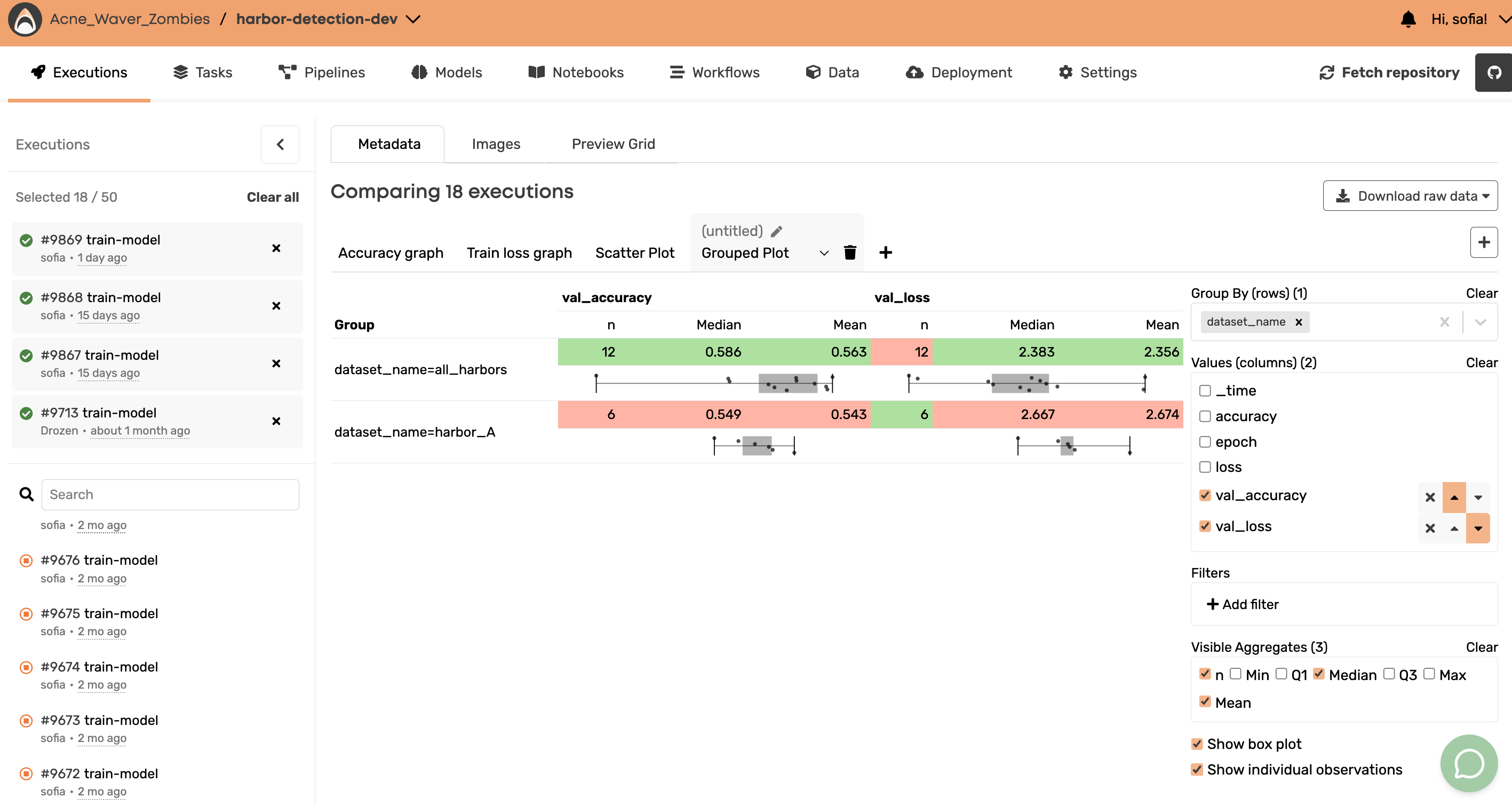
The Grouped Plot lets you compare distributions across experiment groups.
Instead of comparing single values, you compare full distributions using box plots and summary statistics.
Each row represents a group of selected executions.
### Selecting Executions
On the **left side panel**, you can:
* Add executions to the comparison
* Remove executions
* Search and filter runs
Only the selected executions appear in the grouped comparison.
### Define Your Grouping
In the right panel, configure:
#### Group By (rows)
Choose a **categorical metadata key**.\
Each unique value becomes a row.
Examples:
* `dataset_name`
* `model_version`
* `instance_type`
* `architecture`
#### Values (columns)
Select one or more **numeric metadata fields** to analyze.
Examples:
* `val_accuracy`
* `val_loss`
* `training_time`
* `latency`
Each selected value becomes a column with its own box plot and statistics.
#### Visible Aggregates
You can toggle which statistics to display:
* n (number of executions)
* Min
* Q1
* Median
* Q3
* Max
* Mean
You can also:
* Show / hide box plot
* Show / hide individual observations
### Example Configurations
**Compare Datasets**
* Group by: `dataset_name`
* Values: `val_accuracy`, `val_loss`
See which dataset performs best and which introduces more variance.
**Compare Model Versions**
* Group by: `model_version`
* Value: `val_accuracy`
Understand which version is most stable and which has higher median performance.
**Infrastructure Benchmark**
* Group by: `instance_type`
* Value: `training_time`
Detect variability or long-tail performance differences.
### Why Use Grouped Plot?
Use it when you want to:
* Compare distributions (not just averages)
* Detect instability within experiment groups
* Identify variance patterns
* Evaluate A/B tests or multi-variant experiments
* Benchmark datasets, architectures, or infrastructure
It's especially useful when you care about consistency, not just peak performance.
### How To Use It
1. Select executions in the left panel.
2. Open **Metadata view**.
3. Click **Grouped Plot**.
4. Choose:
* Group By key
* One or more Values
* Visible aggregates (optional)
5. Apply filters if needed.
The table and box plots update instantly.
---
# Agent Instructions
This documentation is published with GitBook. GitBook is the documentation platform designed so that both humans and AI agents can read, navigate, and reason over technical content effectively. Learn more at gitbook.com.
## Querying This Documentation
If you need additional information that is not directly available in this page, you can query the documentation by asking a question.
Perform an HTTP GET request on the following URL with the `ask` and `goal` query parameters:
```
GET https://docs.valohai.com/experiment-tracking/visualize-metrics/grouped-metadata-plot.md?ask=&goal=
```
`ask` is the immediate question: it should be specific, self-contained, and written in natural language.
`goal` is what the user is ultimately trying to achieve, the reason they need the answer. Sharing it helps GitBook give you a better, more relevant answer. A goal is most helpful when it describes the outcome the user wants rather than restating the question. For example, with `ask=how do I create an API token`, a goal like `automate deployments from our CI pipeline` lets GitBook tailor the answer to that use case.
The response will contain a direct answer to the question and relevant excerpts and sources from the documentation.
Use this mechanism when the answer is not explicitly present in the current page, you need clarification or additional context, or you want to retrieve related documentation sections.