> For the complete documentation index, see [llms.txt](https://docs.valohai.com/llms.txt). Markdown versions of documentation pages are available by appending `.md` to page URLs; this page is available as [Markdown](https://docs.valohai.com/experiment-tracking/visualize-metrics/scatter-plot.md).
# Scatter Plot
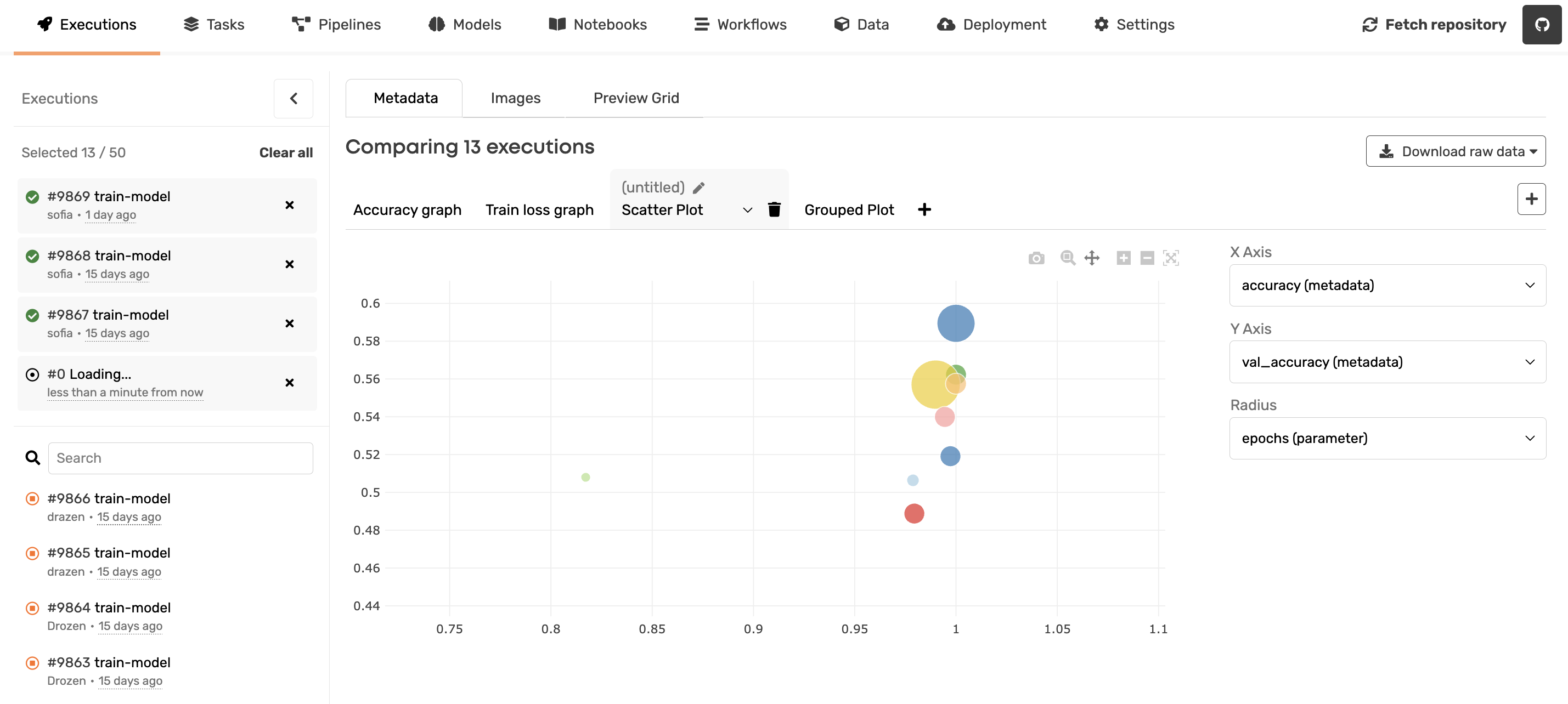
The Scatter Plot helps you understand relationships between experiment metrics.
Instead of looking at one metric at a time, you can compare two (or three) at once and immediately see patterns, trade-offs, and outliers.
Each point represents one execution.
### Selecting Executions
Before configuring the plot, choose which executions you want to compare.
On the **left side panel**, you can:
* Add executions to the comparison
* Remove executions
* Search and filter runs
Only the selected executions appear in the scatter plot.
### Define Your Plot
In the right panel, choose:
* **X Axis** - Any numeric metadata or parameter
* **Y Axis** - Another numeric metadata field
* **Radius (optional)** - A third numeric value that controls bubble size
If Radius is selected, points become bubbles. Larger values = larger circles.
#### Common Plot Setups
**Train vs Validation Performance**
* X: `accuracy`
* Y: `val_accuracy`
* Radius: `epochs`
Detect overfitting or see whether longer training improves validation.
**Quality vs Loss**
* X: `val_loss`
* Y: `val_accuracy`
Identify strong performers and weak outliers.
**Hyperparameter Sensitivity**
* X: `learning_rate`
* Y: `val_accuracy`
See which ranges actually improve performance.
**Efficiency Trade-off**
* X: `training_time`
* Y: `val_accuracy`
* Radius: `model_size`
Understand whether larger or slower models are worth it.
### Why Use Scatter Plot?
Use it when you want to:
* Detect correlations between metrics
* Spot clusters of similar runs
* Identify outliers
* Understand trade-offs (quality vs speed, size vs accuracy)
Especially useful for:
* Hyperparameter sweeps
* Architecture comparisons
* Benchmarking experiments
### How To Use It
1. Select executions in the left panel.
2. Open **Metadata view**.
3. Click **Scatter Plot**.
4. Choose X, Y (and optional Radius).
5. Apply filters if needed.
The plot updates instantly.
---
# Agent Instructions
This documentation is published with GitBook. GitBook is the documentation platform designed so that both humans and AI agents can read, navigate, and reason over technical content effectively. Learn more at gitbook.com.
## Querying This Documentation
If you need additional information that is not directly available in this page, you can query the documentation by asking a question.
Perform an HTTP GET request on the following URL with the `ask` and `goal` query parameters:
```
GET https://docs.valohai.com/experiment-tracking/visualize-metrics/scatter-plot.md?ask=&goal=
```
`ask` is the immediate question: it should be specific, self-contained, and written in natural language.
`goal` is what the user is ultimately trying to achieve, the reason they need the answer. Sharing it helps GitBook give you a better, more relevant answer. A goal is most helpful when it describes the outcome the user wants rather than restating the question. For example, with `ask=how do I create an API token`, a goal like `automate deployments from our CI pipeline` lets GitBook tailor the answer to that use case.
The response will contain a direct answer to the question and relevant excerpts and sources from the documentation.
Use this mechanism when the answer is not explicitly present in the current page, you need clarification or additional context, or you want to retrieve related documentation sections.