> For the complete documentation index, see [llms.txt](https://docs.valohai.com/llms.txt). Markdown versions of documentation pages are available by appending `.md` to page URLs; this page is available as [Markdown](https://docs.valohai.com/automation-overview/rest-api/examples/launch-job-on-new-s3-data.md).
# Launch Executions on New S3 Data
Automatically process data the moment it lands in S3. Use AWS Lambda to trigger Valohai executions or pipelines whenever new files are uploaded to your bucket.
Perfect for retraining workflows, batch processing, or any scenario where new data should immediately kick off computation.
### Prerequisites
* A Valohai project with at least one execution step defined
* An AWS account with S3 access
* An S3 bucket for incoming data
### Generate a Valohai API Token
Create an API token to authenticate Lambda's requests to Valohai:
1. Click **"Hi, \!"** in the top-right corner
2. Go to **My Profile → Authentication**
3. Click **Manage Tokens** and scroll to the bottom
4. Click **Generate New Token**
5. Copy the token immediately — it's shown only once
### Create the Lambda Function
Set up a Lambda function with an S3 trigger that calls the Valohai API.
#### Set up S3 trigger
Follow [AWS's guide to create a Lambda function with an S3 trigger](https://docs.aws.amazon.com/lambda/latest/dg/with-s3-example.html).
**Key configuration:**
* **Runtime:** Python 3.9 or later
* **Timeout:** 30 seconds (API calls need time to complete)
* **IAM Role:** Ensure Lambda can read from S3 (`s3:GetObject` permission)
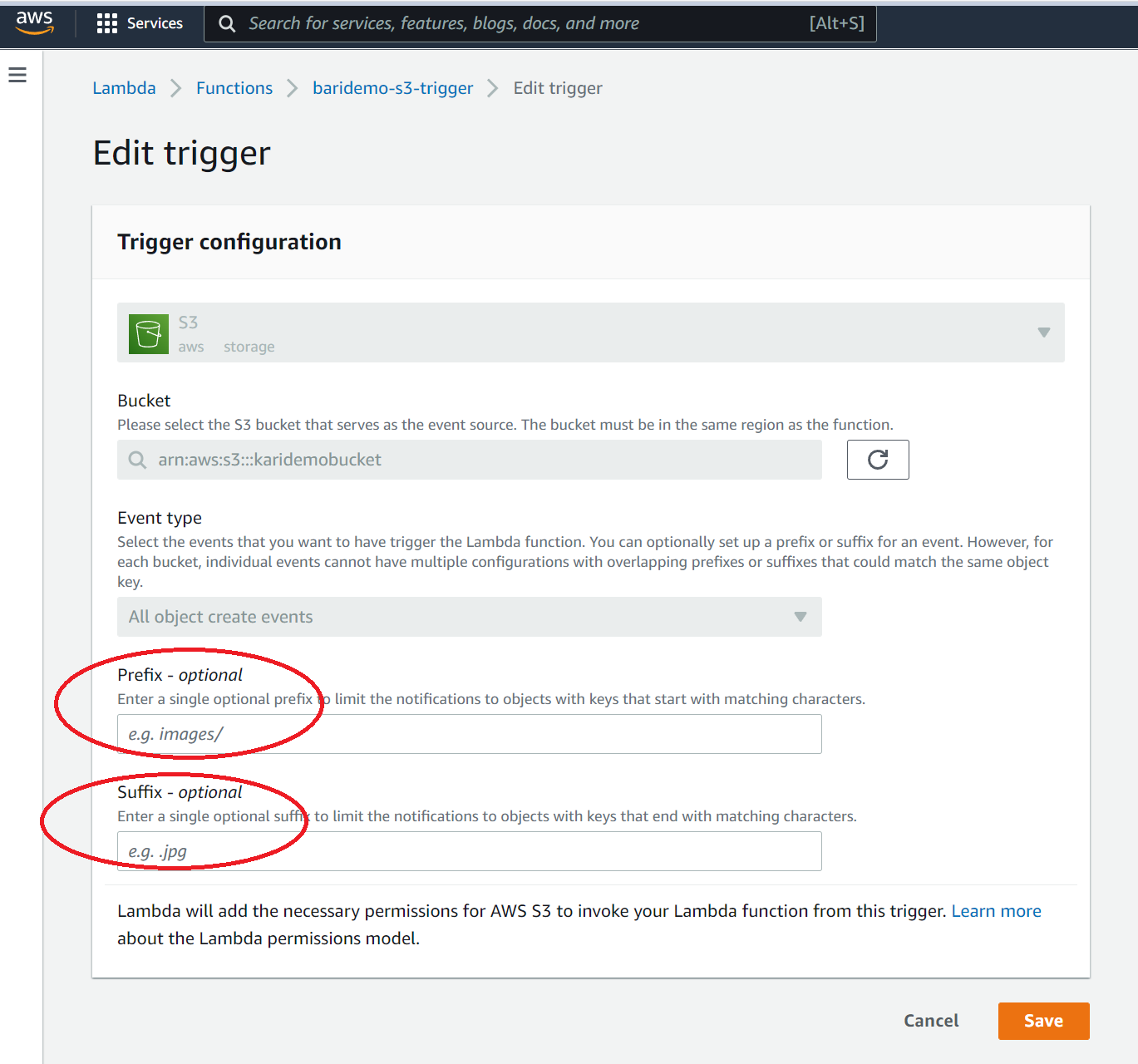
#### Configure trigger filters
Define which files trigger the Lambda function using prefix and suffix filters:
* **Prefix:** Folder path (e.g., `incoming/` or `training-data/`)
* **Suffix:** File extension (e.g., `.csv`, `.jpg`, `.parquet`)
> ⚠️ **Avoid infinite loops!** If Valohai outputs back to the same S3 bucket, use a prefix to exclude the output folder (typically `data/`). Otherwise, new Valohai outputs will trigger another execution, creating an endless loop.
#### Add the Valohai API token
Store your API token as a Lambda environment variable:
1. Open your Lambda function in the AWS Console
2. Go to **Configuration → Environment variables**
3. Click **Add environment variable**
* **Key:** `VH_API_TOKEN`
* **Value:** Paste your Valohai API token
4. Click **Save**
#### Install the `requests` library
Lambda doesn't include the `requests` library by default. Add it as a Lambda Layer or include it in your deployment package. See [AWS's guide on Lambda layers](https://docs.aws.amazon.com/lambda/latest/dg/python-layers.html) for details.
### Get Your Valohai Project Details
You need your project ID, commit identifier, and step name to construct the API call.
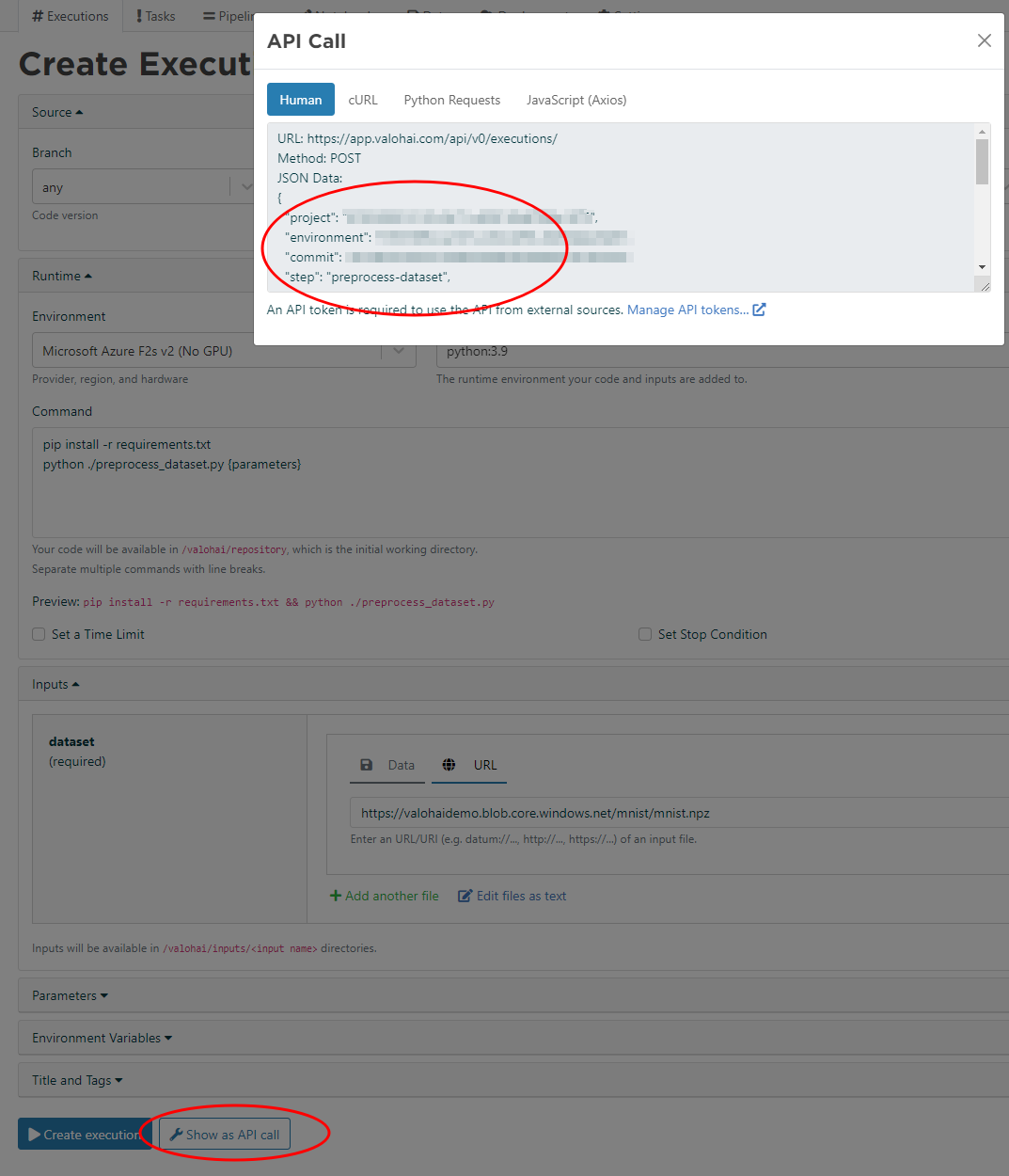
**Easy way to get these:**
1. Go to your Valohai project
2. Click **Create Execution** (or **Create Pipeline**)
3. Configure your execution as you normally would
4. Click **Show as API call** at the bottom of the form
5. Copy the JSON structure — it contains all required IDs
> 💡 *The "Show as API call" button appears next to every Create Execution, Create Task, and Create Pipeline button in Valohai.*
### Lambda Function Code
#### Trigger an execution
This example triggers a single execution when new data arrives:
```python
import json
import urllib.parse
import boto3
import requests
import os
print("Loading function")
s3 = boto3.client("s3")
def lambda_handler(event, context):
# Extract S3 bucket and file path from the Lambda event
bucket = event["Records"][0]["s3"]["bucket"]["name"]
key = urllib.parse.unquote_plus(event["Records"][0]["s3"]["object"]["key"], encoding="utf-8")
# Generate S3 URL to the new file
url_to_new_file = f"s3://{bucket}/{key}"
# Authenticate with Valohai API
auth_token = os.environ["VH_API_TOKEN"]
headers = {"Authorization": f"Token {auth_token}"}
# Create execution payload
# Get these values from "Show as API call" in the Valohai UI
new_execution_json = {
"project": "your-project-id-here",
"commit": "main", # or specific commit hash
"step": "your-step-name",
"inputs": {
"dataset": [url_to_new_file], # input name must match your valohai.yaml
},
}
# Trigger the execution
resp = requests.post(
"https://app.valohai.com/api/v0/executions/",
headers=headers,
json=new_execution_json,
)
resp.raise_for_status()
print(json.dumps(resp.json(), indent=4))
return {
"statusCode": 200,
"body": json.dumps("Execution triggered successfully"),
}
```
#### Trigger a pipeline
This example triggers a multi-step pipeline when new data arrives:
```python
import json
import urllib.parse
import boto3
import requests
import os
print("Loading function")
s3 = boto3.client("s3")
def lambda_handler(event, context):
# Extract S3 bucket and file path from the Lambda event
bucket = event["Records"][0]["s3"]["bucket"]["name"]
key = urllib.parse.unquote_plus(event["Records"][0]["s3"]["object"]["key"], encoding="utf-8")
# Generate S3 URL to the new file
url_to_new_file = f"s3://{bucket}/{key}"
# Authenticate with Valohai API
auth_token = os.environ["VH_API_TOKEN"]
headers = {"Authorization": f"Token {auth_token}"}
# Create pipeline payload
# Get this structure from "Show as API call" in the Valohai UI
new_pipeline_json = {
"project": "your-project-id-here",
"title": "S3-triggered Pipeline",
"nodes": [
{
"name": "preprocess",
"type": "execution",
"template": {
"commit": "main",
"step": "preprocess-dataset",
"inputs": {
"dataset": [url_to_new_file],
},
},
},
{
"name": "train",
"type": "execution",
"template": {
"commit": "main",
"step": "train-model",
},
},
{
"name": "evaluate",
"type": "execution",
"template": {
"commit": "main",
"step": "evaluate-model",
},
},
],
"edges": [
{
"source_node": "preprocess",
"source_key": "preprocessed_data.npz",
"source_type": "output",
"target_node": "train",
"target_type": "input",
"target_key": "dataset",
},
{
"source_node": "train",
"source_key": "model*",
"source_type": "output",
"target_node": "evaluate",
"target_type": "input",
"target_key": "model",
},
],
"tags": ["s3-triggered"],
}
# Trigger the pipeline
resp = requests.post(
"https://app.valohai.com/api/v0/pipelines/",
headers=headers,
json=new_pipeline_json,
)
resp.raise_for_status()
print(json.dumps(resp.json(), indent=4))
return {
"statusCode": 200,
"body": json.dumps("Pipeline triggered successfully"),
}
```
### Verify It Works
Test your Lambda function by uploading a file to your S3 bucket:
1. Upload a test file to the configured S3 path
2. Check the Lambda logs in CloudWatch to verify execution
3. Go to your Valohai project — a new execution or pipeline should appear
### Troubleshooting
**Lambda timeout errors:**
* Increase the timeout to 30+ seconds in Lambda configuration
* API calls can take several seconds to complete
**"Module not found" for `requests`:**
* Add the `requests` library as a Lambda Layer or deployment package
* Lambda's default Python environment doesn't include it
**Execution doesn't appear in Valohai:**
* Verify your `VH_API_TOKEN` environment variable is set correctly
* Check that project ID, commit, and step names match your project
* Review CloudWatch logs for API error responses
**Self-hosted Valohai:** Replace `https://app.valohai.com` with your installation URL in the Lambda code
---
# Agent Instructions
This documentation is published with GitBook. GitBook is the documentation platform designed so that both humans and AI agents can read, navigate, and reason over technical content effectively. Learn more at gitbook.com.
## Querying This Documentation
If you need additional information that is not directly available in this page, you can query the documentation by asking a question.
Perform an HTTP GET request on the following URL with the `ask` and `goal` query parameters:
```
GET https://docs.valohai.com/automation-overview/rest-api/examples/launch-job-on-new-s3-data.md?ask=&goal=
```
`ask` is the immediate question: it should be specific, self-contained, and written in natural language.
`goal` is what the user is ultimately trying to achieve, the reason they need the answer. Sharing it helps GitBook give you a better, more relevant answer. A goal is most helpful when it describes the outcome the user wants rather than restating the question. For example, with `ask=how do I create an API token`, a goal like `automate deployments from our CI pipeline` lets GitBook tailor the answer to that use case.
The response will contain a direct answer to the question and relevant excerpts and sources from the documentation.
Use this mechanism when the answer is not explicitly present in the current page, you need clarification or additional context, or you want to retrieve related documentation sections.