> For the complete documentation index, see [llms.txt](https://docs.valohai.com/llms.txt). Markdown versions of documentation pages are available by appending `.md` to page URLs; this page is available as [Markdown](https://docs.valohai.com/experiment-tracking.md).
# Experiment Tracking & Visualizations
Track every metric, visualize training progress, and compare experiments without writing custom logging code. Valohai's metadata system turns any JSON you print into searchable, sortable, comparable experiment data.
No MLflow setup, no TensorBoard configuration, no database management, just print JSON and get instant visualizations.
***
### How It Works
#### Print JSON, Get Metrics
Any JSON your code prints becomes metadata:
```python
import json
print(
json.dumps(
{
"epoch": 10,
"loss": 0.023,
"accuracy": 0.95,
"learning_rate": 0.001,
},
),
)
```
That's it. Valohai captures it automatically.
> :bulb:Tip: In Python you can use for example `json.dumps()` or the `valohai-utils` helper tool to print the metrics. See the [Collect Metrics](/experiment-tracking/collect-metrics.md) section for more information.
#### Visualize in Real-Time
Watch your metrics update as training runs. No need to wait for the job to finish—graphs appear as soon as the first JSON is printed.
#### Compare Across Runs
Select multiple executions and compare their metrics side-by-side. Sort by accuracy, filter by loss, find your best model in seconds.
***
### What You Can Track
#### Training Metrics
Log loss, accuracy, precision, recall—anything you can measure:
```python
with valohai.metadata.logger() as logger:
for epoch in range(epochs):
# Training loop...
logger.log("epoch", epoch)
logger.log("train_loss", train_loss)
logger.log("val_loss", val_loss)
logger.log("accuracy", accuracy)
```
#### Custom Metrics
Log anything relevant to your experiment:
```python
print(
json.dumps(
{
"training_time_minutes": 145,
"gpu_utilization": 0.92,
"dataset_size": 10000,
"model_parameters": 25000000,
},
),
)
```
> :bulb:**Tip:** Metrics are not limited to numeric values only but you can log anything you can print from your jobs.
***
### Visualizations
#### Time Series (Default)
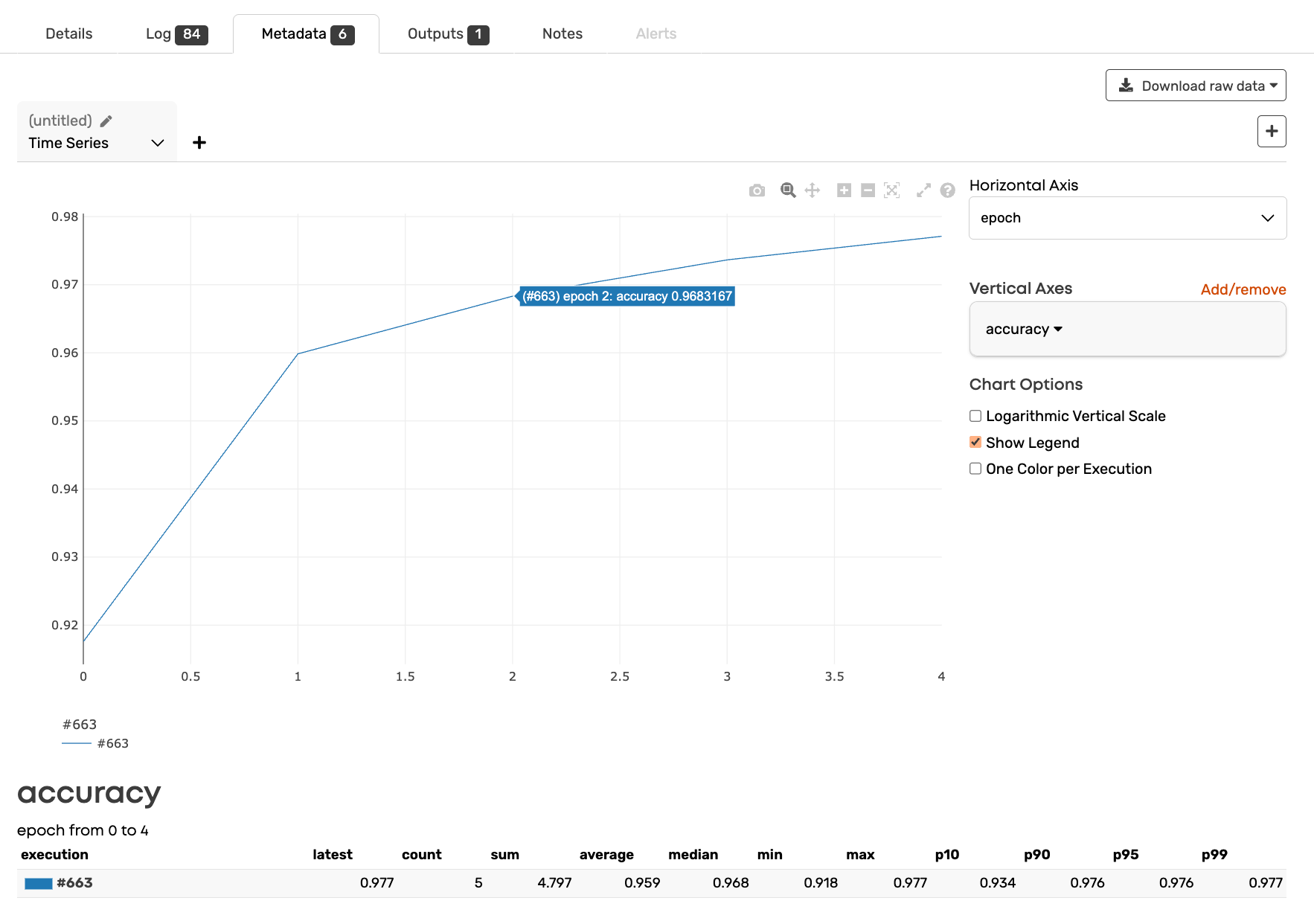
Plot metrics over time: epochs, steps, or timestamps. Watch loss decrease and accuracy improve as training progresses.
Perfect for:
* Monitoring convergence
* Detecting overfitting
* Spotting training instability
[Learn more →](/experiment-tracking/visualize-metrics/time-series.md)
#### Confusion Matrices
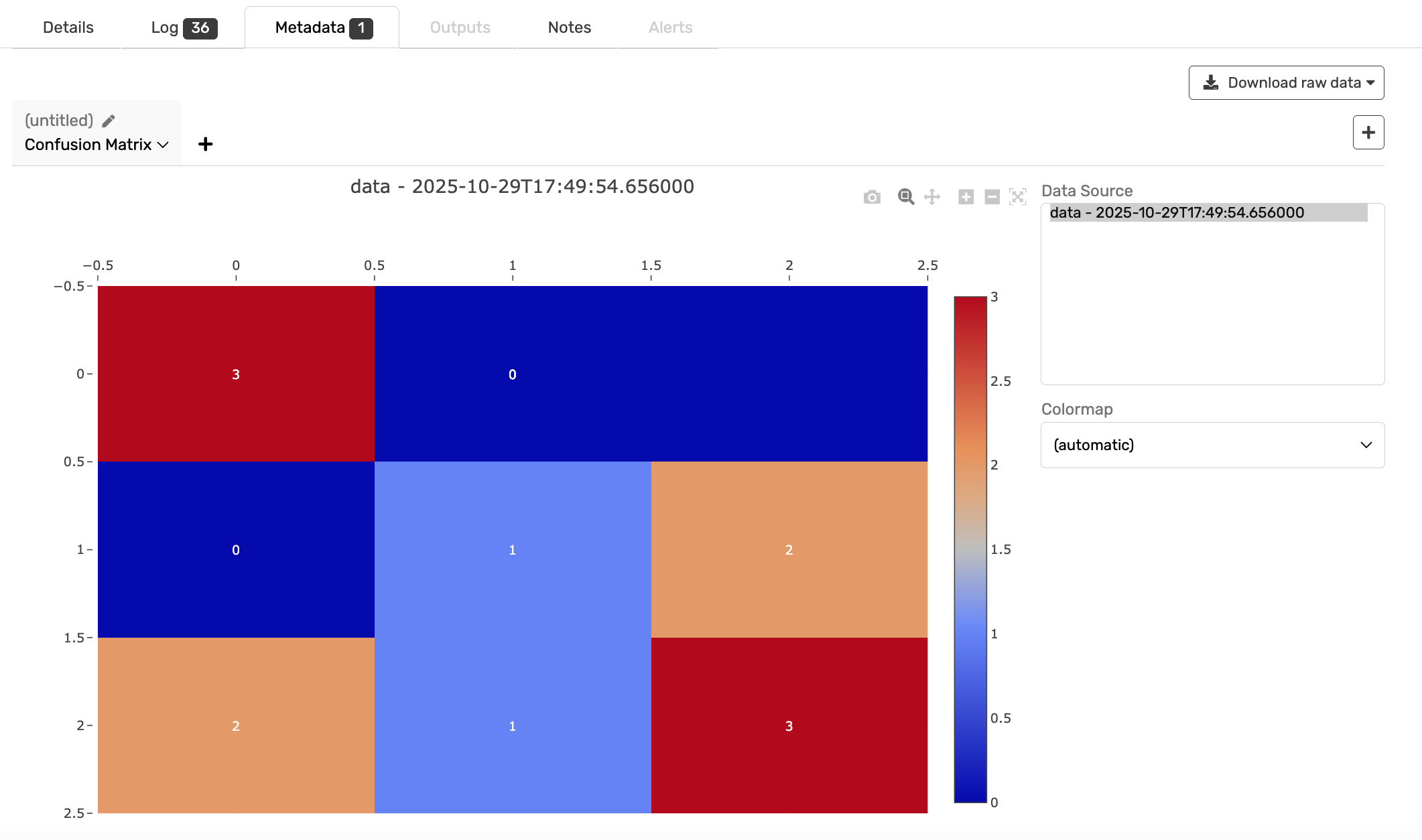
Visualize classification performance with interactive confusion matrices. See where your model excels and where it struggles.
Perfect for:
* Multi-class classification
* Error analysis
* Model debugging
[Learn more →](/experiment-tracking/visualize-metrics/confusion-matrix.md)
#### Image Comparison
Stack output images from different runs and toggle between them. Use blend modes, side-by-side sliders, and color overlays to spot differences.
Perfect for:
* Computer vision experiments
* Quality control testing
* Before/after comparisons
[Learn more →](/experiment-tracking/compare-images.md)
Custom Plots and Images
If you need specific types of plots for your metadata. You can always do the plotting inside your executions and save the results as outputs.
```python
import matplotlib.pyplot as plt
import numpy as np
import valohai
np.random.seed(19680801)
data = np.random.randn(2, 100)
fig, axs = plt.subplots(2, 2, figsize=(5, 5))
axs[0, 0].hist(data[0])
axs[1, 0].scatter(data[0], data[1])
axs[0, 1].plot(data[0], data[1])
axs[1, 1].hist2d(data[0], data[1])
save_path = "/valohai/outputs/myplot.png"
plt.savefig(save_path)
plt.show()
plt.close()
```
***
### Comparing Experiments
#### Side-by-Side Comparison
Select multiple executions and view their metrics in a comparison table. Sort by any metric to find your best performer.
**Use cases:**
* Hyperparameter tuning: which learning rate worked best?
* Architecture comparison: ResNet vs. EfficientNet
* Data: how does training data size affect accuracy?
[Learn more →](/experiment-tracking/compare-executions.md)
#### Sortable Execution Table
The Executions table displays the latest value of each metric. Click any column header to sort by that metric.
**Find:**
* Highest accuracy runs
* Fastest training times
* Most efficient models (accuracy per parameter)
#### Download for Analysis
Export metadata as CSV or JSON for deeper analysis in pandas, Excel, or your tool of choice.
***
### Why This Matters
#### No Instrumentation Overhead
With other tools:
```python
# Set up MLflow
import mlflow
mlflow.set_tracking_uri("...")
mlflow.start_run()
mlflow.log_param("lr", 0.001)
mlflow.log_metric("loss", loss, step=epoch)
mlflow.end_run()
```
With Valohai:
```python
# Just print JSON
print(json.dumps({"epoch": epoch, "loss": loss}))
```
#### Automatic Versioning
Every execution's metrics are linked to:
* The exact code (Git commit)
* The input data
* The hyperparameters used
* The output artifacts produced
No manual tracking, no forgotten runs, no "which model was this again?"
#### Built for ML Workflows
Metrics aren't isolated—they're connected to your entire ML pipeline:
* Sort executions by accuracy to pick the best for deployment
* Use metric thresholds in pipelines to gate production releases
* Compare image outputs from different preprocessing strategies
***
### Common Patterns
#### Monitor Training Progress
```python
import valohai
with valohai.metadata.logger() as logger:
for epoch in range(epochs):
train_loss = train_epoch(model, train_loader)
val_loss = validate(model, val_loader)
logger.log("epoch", epoch)
logger.log("train_loss", train_loss)
logger.log("val_loss", val_loss)
logger.log("learning_rate", optimizer.param_groups[0]["lr"])
```
#### Track Experiment Results
```python
import json
# After training completes
results = {
"final_accuracy": 0.95,
"best_val_loss": 0.023,
"epochs_trained": 100,
"early_stopped": True,
"training_time_minutes": 145,
}
print(json.dumps(results))
```
#### Log Confusion Matrix
```python
from sklearn.metrics import confusion_matrix
import numpy as np
import json
y_actu = [2, 0, 2, 2, 0, 1, 1, 2, 2, 0, 1, 2]
y_pred = [0, 0, 2, 1, 0, 2, 1, 0, 2, 0, 2, 2]
matrix = confusion_matrix(y_actu, y_pred)
# Convert to list
result = matrix.tolist()
print(json.dumps({"data": result}))
# {"data": [[3, 0, 0], [0, 1, 2], [2, 1, 3]]}
```
***
### Best Practices
#### Log Incrementally
Print metrics throughout training, not just at the end:
```python
# Good: Log each epoch
for epoch in range(100):
loss = train_epoch()
print(json.dumps({"epoch": epoch, "loss": loss}))
# Avoid: Only log final result
# (You lose visibility into training progress)
```
#### Use Consistent Keys
Keep metric names consistent across experiments:
```python
# Good: Consistent naming
"accuracy"
"val_accuracy"
"test_accuracy"
# Avoid: Inconsistent naming
"acc"
"validation_accuracy"
"test_acc"
```
***
### Next Steps
**Get Started:**
1. [Collect metrics](/experiment-tracking/collect-metrics.md) from your training code
2. [Visualize metrics](/experiment-tracking/visualize-metrics.md) in real-time
3. [Compare executions](/experiment-tracking/compare-executions.md) to find your best model
**Advanced:**
* [Use metrics in pipeline conditions](/pipelines/dynamic-conditions.md) to automate decisions
* [Set up early stopping](/tasks/early-stopping.md) based on metric thresholds
---
# Agent Instructions
This documentation is published with GitBook. GitBook is the documentation platform designed so that both humans and AI agents can read, navigate, and reason over technical content effectively. Learn more at gitbook.com.
## Querying This Documentation
If you need additional information that is not directly available in this page, you can query the documentation by asking a question.
Perform an HTTP GET request on the following URL with the `ask` and `goal` query parameters:
```
GET https://docs.valohai.com/experiment-tracking.md?ask=&goal=
```
`ask` is the immediate question: it should be specific, self-contained, and written in natural language.
`goal` is what the user is ultimately trying to achieve, the reason they need the answer. Sharing it helps GitBook give you a better, more relevant answer. A goal is most helpful when it describes the outcome the user wants rather than restating the question. For example, with `ask=how do I create an API token`, a goal like `automate deployments from our CI pipeline` lets GitBook tailor the answer to that use case.
The response will contain a direct answer to the question and relevant excerpts and sources from the documentation.
Use this mechanism when the answer is not explicitly present in the current page, you need clarification or additional context, or you want to retrieve related documentation sections.