> For the complete documentation index, see [llms.txt](https://docs.valohai.com/llms.txt). Markdown versions of documentation pages are available by appending `.md` to page URLs; this page is available as [Markdown](https://docs.valohai.com/experiment-tracking/visualize-metrics.md).
# Visualize Metrics
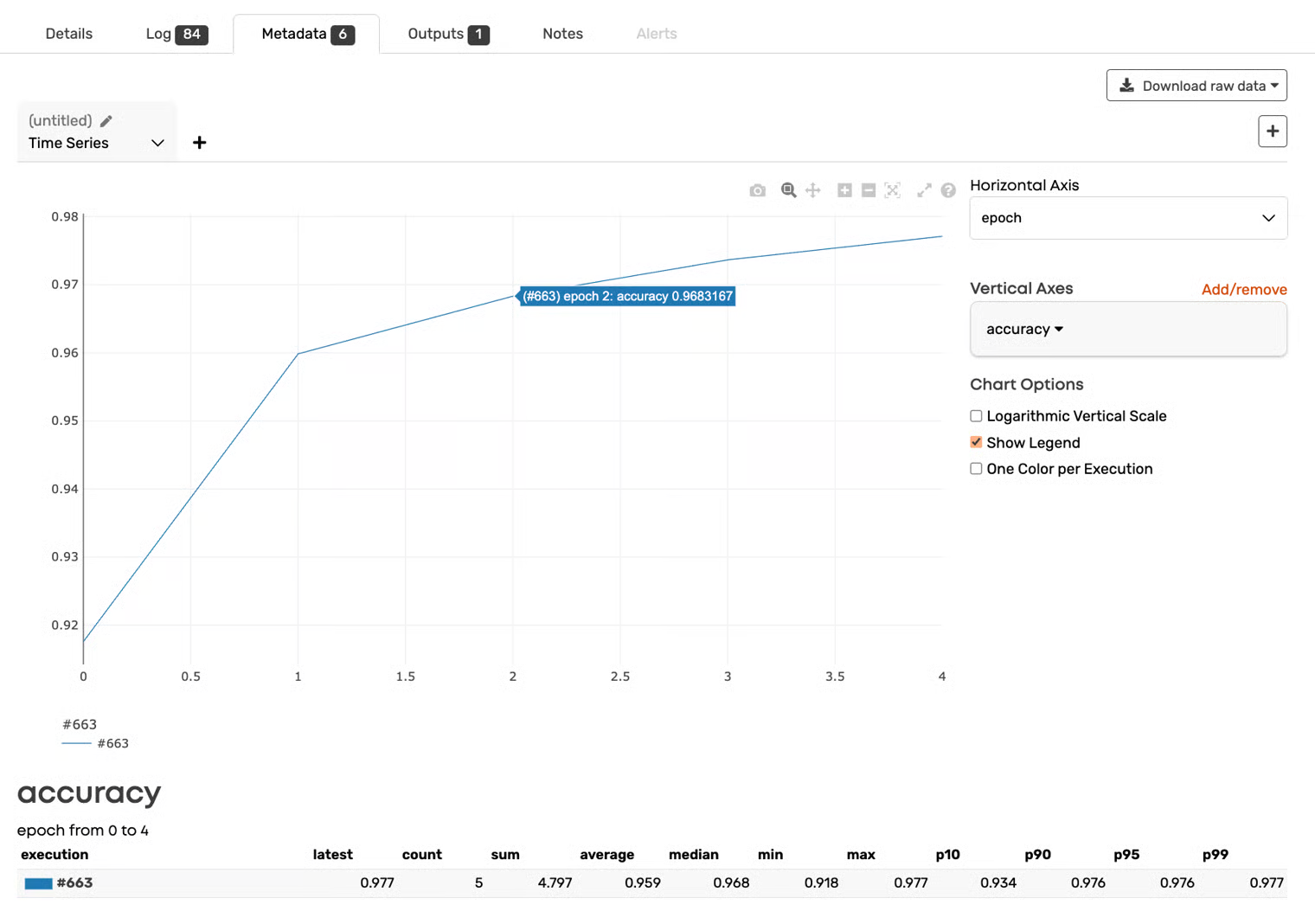
Watch your metrics update in real-time as training runs. Valohai automatically creates interactive visualizations from any JSON you print—no plotting code required.
***
### Access Visualizations
#### During Training (Real-Time)
Metrics appear as soon as your code prints JSON. You don't need to wait for training to finish.
**To view:**
1. Open your execution
2. Click the **Metadata** tab (shows the count of logged metrics)
3. Visualizations appear automatically
Graphs update live as new metrics are logged.
***
#### After Training
All visualizations remain available after the execution completes. Access them the same way: open the execution and click the **Metadata** tab.
***
### Visualization Types
#### Time Series (Default)
Plot metrics over time—epochs, steps, or iterations. Watch loss decrease and accuracy improve as training progresses.
**Best for:**
* Monitoring convergence
* Detecting overfitting (train vs. validation curves)
* Tracking learning rate schedules
[Learn more →](/experiment-tracking/visualize-metrics/time-series.md)
***
#### Confusion Matrix
Visualize classification performance with an interactive confusion matrix. See where your model excels and where it struggles.
**Best for:**
* Multi-class classification
* Error analysis
* Understanding misclassification patterns
[Learn more →](/experiment-tracking/visualize-metrics/confusion-matrix.md)
***
#### Scatter Plot
Compare two (or three) numeric metrics across multiple executions. Each execution appears as a point, helping you detect relationships, clusters, and trade-offs.
**Best for:**
* Hyperparameter sweeps
* Understanding metric correlations
* Identifying outliers
* Evaluating quality vs. performance trade-offs
[Learn more →](/experiment-tracking/visualize-metrics/scatter-plot.md)
***
#### Grouped Plot
Compare metric distributions across experiment groups using box plots and statistical summaries. Group executions by categorical metadata and analyze variance, stability, and performance patterns.
**Best for:**
* A/B testing and multi-variant experiments
* Comparing datasets or model versions
* Detecting instability or variance
* Infrastructure benchmarking
[Learn more →](/experiment-tracking/visualize-metrics/grouped-metadata-plot.md)
***
#### Image Comparison
Stack output images from different runs and toggle between them. Use blend modes, side-by-side sliders, and color overlays to spot differences.
**Best for:**
* Computer vision experiments
* Quality control testing
* Before/after comparisons
* Medical imaging analysis
[Learn more →](#image-comparison)
***
### Quick Start
#### 1. Log Metrics
Print JSON from your training code:
```python
import json
print(
json.dumps(
{
"epoch": 1,
"train_loss": 0.5,
"val_loss": 0.6,
"accuracy": 0.82,
},
),
)
```
***
#### 2. Open Metadata Tab
Navigate to your execution and click the **Metadata** tab. You'll see:
* Automatic time series graphs for all numeric metrics
* Options to create additional visualization tabs
* Controls to customize what's displayed
***
#### 3. Customize Visualization
**Choose your horizontal axis:**
* Select any metric (like `epoch`) from the dropdown
* Default is `_time` (when the metric was logged)
**Add metrics to plot:**
* Click **Add/remove** in the Vertical Axes section
* Select which metrics to visualize
* Create multiple graphs by adding more metrics
**Adjust display:**
* **Smoothing:** Reduce noise with a smoothing slider
* **Vertical axis side:** Place metrics on left or right axis
* **Logarithmic scale:** Use log scale for vertical axis
* **Show legend:** Toggle metric labels
* **One color per execution:** Useful when comparing runs
***
### Interactive Features (Powered by Plotly)
All graphs are interactive:
**Zoom:** Click and drag to zoom into specific regions\
**Pan:** Hold shift and drag to pan\
**Reset:** Double-click to reset view\
**Hover:** See exact values at any point\
**Save image:** Use the camera icon to download as PNG
***
### Multiple Visualization Tabs
Create multiple visualization tabs to organize different metric groups:
1. Click the **+** button next to the visualization tabs
2. Name your new tab (e.g., "Loss Curves", "Accuracy Metrics")
3. Configure each tab with different metrics and settings
**Use cases:**
* Separate tab for loss metrics
* Separate tab for accuracy metrics
* Separate tab for learning rate schedule
* Different time scales or smoothing per tab
***
### Export Data
Download your metrics for external analysis:
**From the Metadata tab:**
* Click **Download raw data** (top right)
* Choose format: **CSV** or **JSON**
* Get all metrics logged during the execution
**Use the exported data for:**
* Custom visualizations in Python/R
* Statistical analysis
* Reporting and presentations
* Sharing with stakeholders
***
### Comparing Multiple Executions
View metrics from multiple executions on the same graph:
1. Go to the **Executions** tab in your project
2. Select multiple executions using checkboxes
3. Click **Compare**
4. All selected executions appear in the same visualization
This lets you directly compare:
* Different hyperparameter settings
* Different model architectures
* Training runs with different data
[Learn more about comparing executions →](/experiment-tracking/compare-executions.md)
***
### When Metrics Don't Appear
#### Metadata Tab Grayed Out
**Cause:** No JSON printed yet
**Solution:** Make sure your code prints JSON:
```python
import json
print(json.dumps({"epoch": 1, "loss": 0.5}))
```
***
#### Metrics Logged But Not Plotted
**Cause:** Non-numeric values can't be plotted
**Solution:** Only numeric values appear in graphs. String values appear in the data export but not in visualizations.
```python
# Plotted
print(json.dumps({"epoch": 1, "loss": 0.5}))
# Not plotted (string value)
print(json.dumps({"model_name": "resnet50"}))
```
***
#### Graph Looks Wrong
**Common issues:**
**Missing epoch counter:**
```python
# Hard to interpret
print(json.dumps({"loss": 0.5}))
# Clear progression
print(json.dumps({"epoch": 1, "loss": 0.5}))
```
**Wrong horizontal axis:**
* Change from `_time` to your step counter (like `epoch`)
* Click the **Horizontal Axis** dropdown and select your metric
**Too noisy:**
* Use the **Smoothing** slider to reduce noise
* Adjust the slider until trends are clear
***
### Best Practices
#### Use Consistent Metric Names
Keep names identical across experiments:
```python
# Good: Consistent
"train_loss"
"val_loss"
# Avoid: Inconsistent
"training_loss"
"validation_loss"
```
***
#### Include Step Counter
Always log a step or epoch number:
```python
# Good
print(
json.dumps(
{
"epoch": epoch,
"loss": loss,
},
),
)
# Avoid
print(
json.dumps(
{
"loss": loss, # No way to see progression
},
),
)
```
***
#### Log Progressively
Print metrics throughout training, not just at the end:
```python
# Good: See convergence in real-time
for epoch in range(100):
loss = train_epoch()
print(json.dumps({"epoch": epoch, "loss": loss}))
# Avoid: Only final result
# (No visibility into training progress)
```
***
#### Group Related Metrics
Log related metrics in the same JSON object:
```python
# Good: All training metrics together
print(
json.dumps(
{
"epoch": epoch,
"train_loss": train_loss,
"train_accuracy": train_acc,
"val_loss": val_loss,
"val_accuracy": val_acc,
},
),
)
```
***
### Next Steps
**Learn specific visualization types:**
* [Visualize time series metrics](/experiment-tracking/visualize-metrics/time-series.md)
* [Create confusion matrices](/experiment-tracking/visualize-metrics/confusion-matrix.md)
* [Compare output images](#image-comparison)
**Compare experiments:**
* [Compare multiple executions](/experiment-tracking/compare-executions.md)
**Collect metrics:**
* [Collect metrics from your code](/experiment-tracking/collect-metrics.md)
---
# Agent Instructions
This documentation is published with GitBook. GitBook is the documentation platform designed so that both humans and AI agents can read, navigate, and reason over technical content effectively. Learn more at gitbook.com.
## Querying This Documentation
If you need additional information that is not directly available in this page, you can query the documentation by asking a question.
Perform an HTTP GET request on the following URL with the `ask` and `goal` query parameters:
```
GET https://docs.valohai.com/experiment-tracking/visualize-metrics.md?ask=&goal=
```
`ask` is the immediate question: it should be specific, self-contained, and written in natural language.
`goal` is what the user is ultimately trying to achieve, the reason they need the answer. Sharing it helps GitBook give you a better, more relevant answer. A goal is most helpful when it describes the outcome the user wants rather than restating the question. For example, with `ask=how do I create an API token`, a goal like `automate deployments from our CI pipeline` lets GitBook tailor the answer to that use case.
The response will contain a direct answer to the question and relevant excerpts and sources from the documentation.
Use this mechanism when the answer is not explicitly present in the current page, you need clarification or additional context, or you want to retrieve related documentation sections.