> For the complete documentation index, see [llms.txt](https://docs.valohai.com/llms.txt). Markdown versions of documentation pages are available by appending `.md` to page URLs; this page is available as [Markdown](https://docs.valohai.com/installation-and-setup/kubernetes/ovh.md).
# OVH Kubernetes
This guide walks you through creating and configuring an OVH Kubernetes cluster for Valohai, including private networking and Redis setup.
> **Note:** Before you begin, ensure you have an OVHcloud account and access to OVH resources.
## Overview
Setting up Valohai on OVHcloud requires:
1. Private network (vRack) with gateway
2. Redis instance for job queue
3. Kubernetes cluster
4. Valohai workers installed on the cluster
## Step 1: Create Private Network
### Create the Network
Navigate to **Private network (vRack)** and click **Add Private Network**.
**Configuration:**
**Step 1 - Select region:**
* Choose your region
**Step 2 - Configure your private network:**
* Select **Create a Gateway**
* Connect to the private network
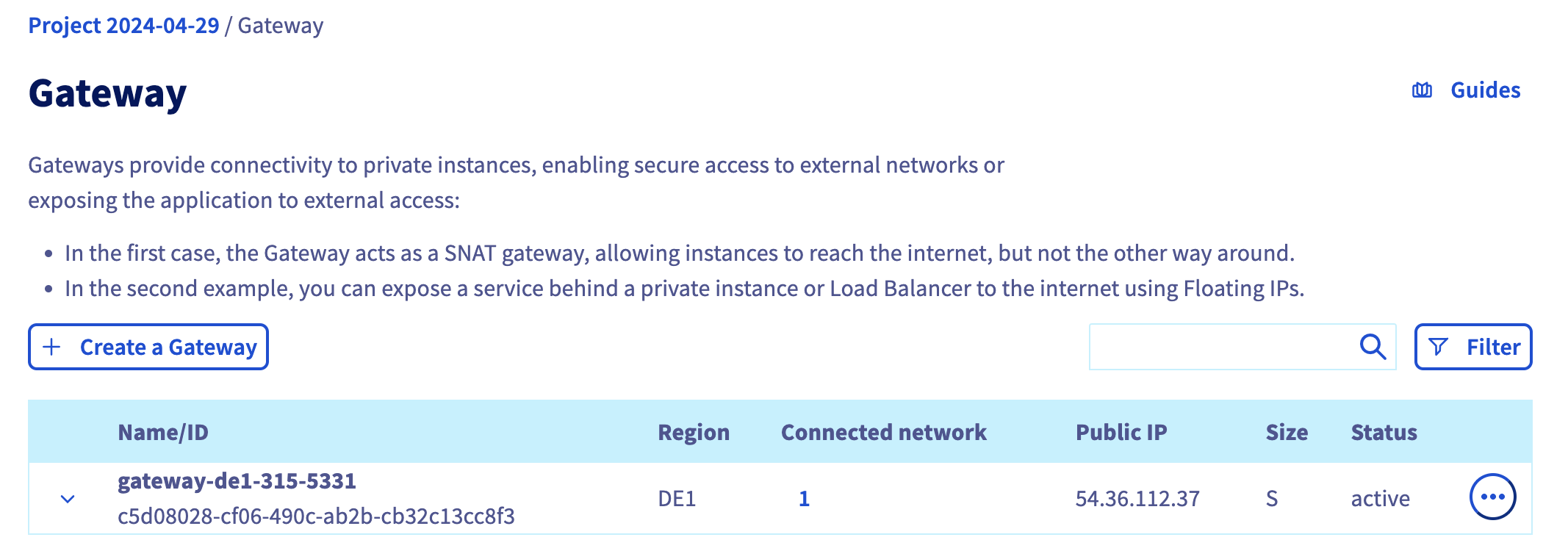
### Verify Gateway
After creating the private network, verify it was set up correctly:
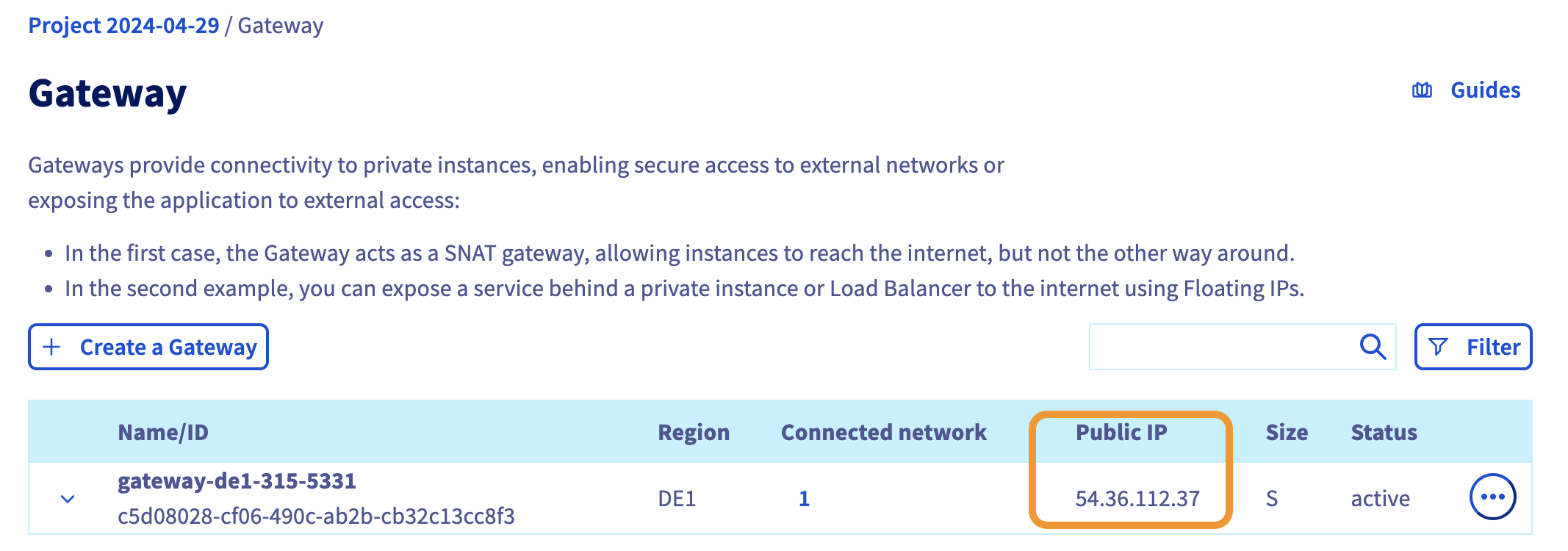
Navigate to **Gateway** in the left-hand navigation bar to confirm the gateway has been created.
More details on private networks: [OVH Private Network Documentation](https://help.ovhcloud.com/csm/en-public-cloud-databases-configure-vrack?id=kb_article_view\&sysparm_article=KB0048818)
## Step 2: Create Redis Instance
### Create Redis Service
**1. Open your Public Cloud project**
Log in to your OVHcloud Control Panel and open your Public Cloud project.
**2. Create caching service**
* Navigate to **Databases** in the left-hand navigation bar
* Select **Caching service (Redis instance)**
**3. Configure the service**
* Make sure your database is **public**
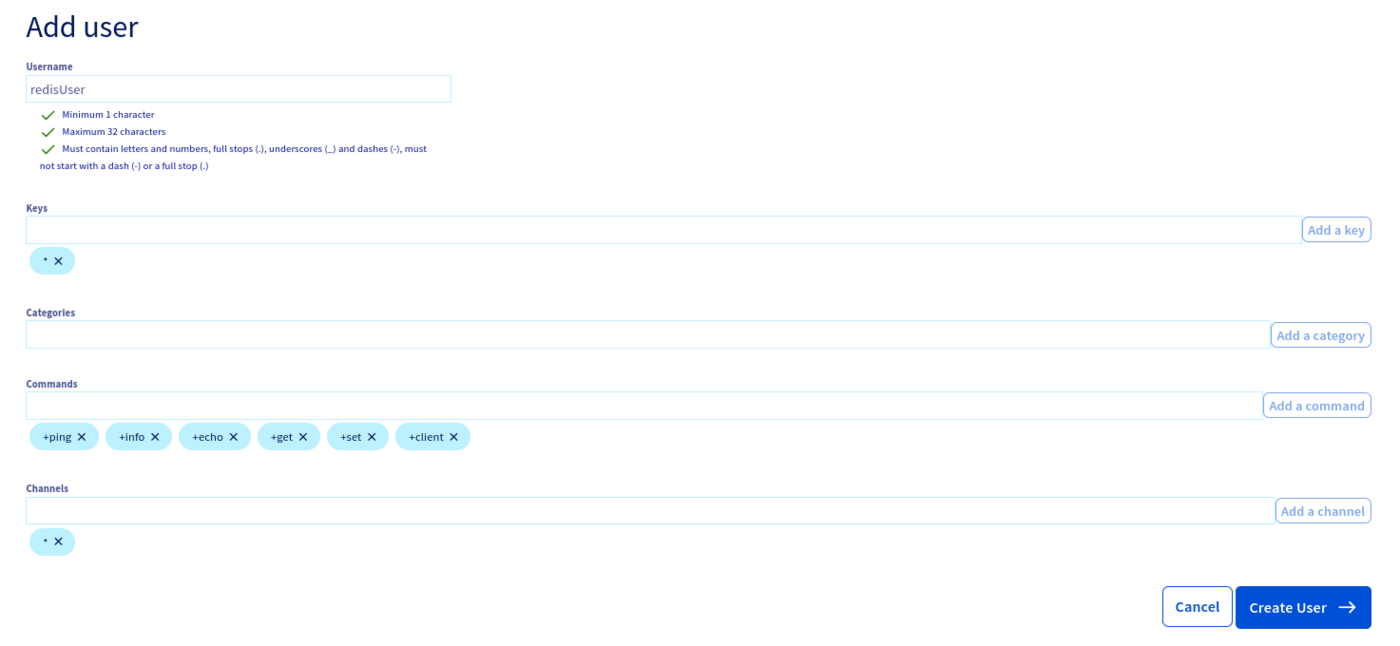
### Create Redis User
After the service is created, create a user with specific permissions.
**Commands:**
```
+exists +setnx +blpop +lpush +llen +lrange +get +rpush +lset +info +config +hsetnx +expire +persist +multi +lrem +hget +ping +evalsha +exec +set +auth +del +client +hexists +hset +script
```
**Keys and Channels:**
Set both to `*` (use allkeys and allchannels)
**Important:** Save the user password. You'll need it later.
More details on Redis: [OVH Redis Configuration Documentation](https://help.ovhcloud.com/csm/en-public-cloud-databases-redis-configure-instance?id=kb_article_view\&sysparm_article=KB0049561)
### Configure Authorized IPs
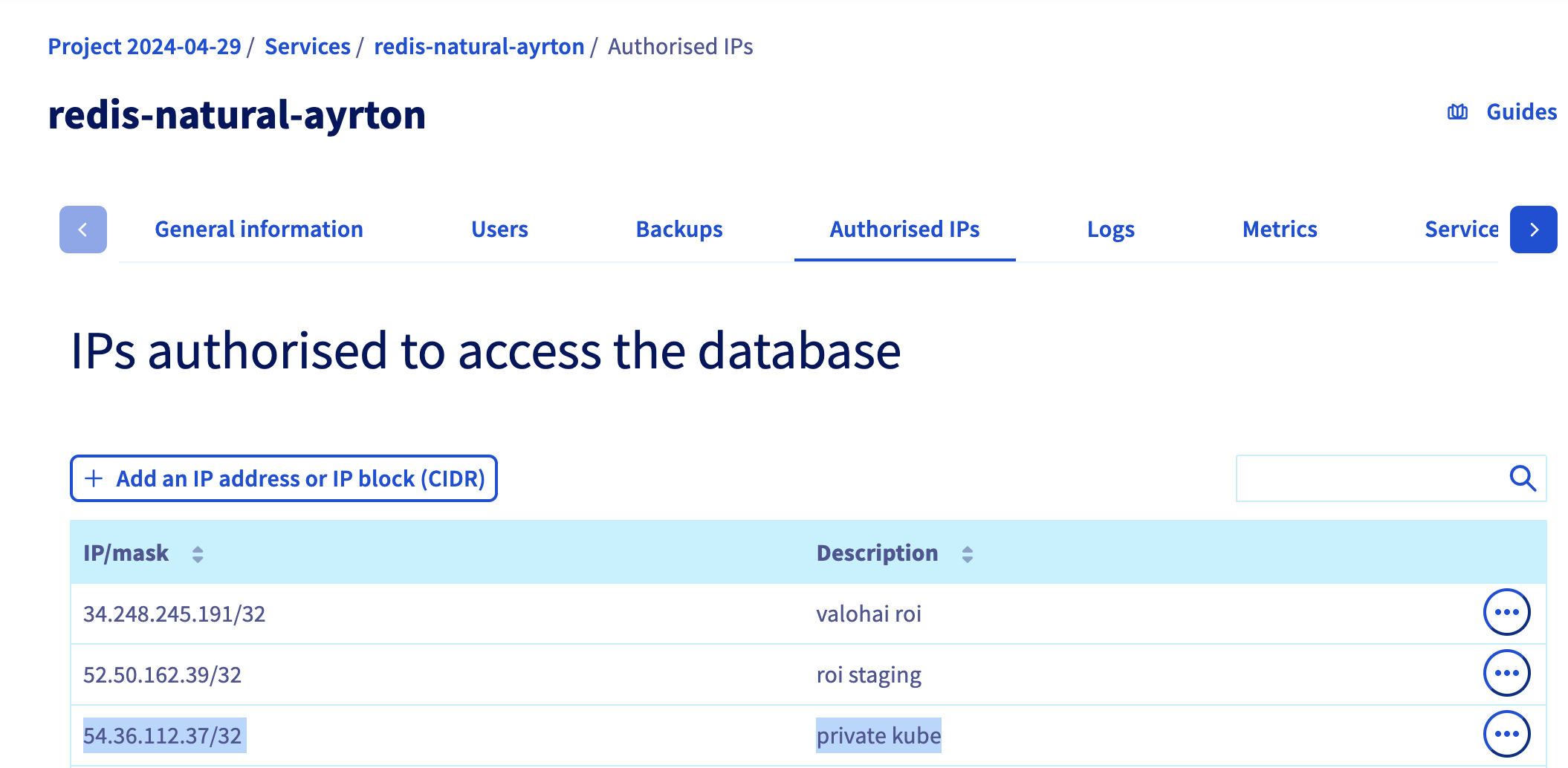
Navigate to **Authorised API** and allow app.valohai.com to connect to Redis:
Add IP: `34.248.245.191/32`
> **Note:** If you are using a self-hosted or hybrid Valohai setup, your IP address will be different.
## Step 3: Create Kubernetes Cluster
### Create the Cluster
Navigate to **OVH Kubernetes** and click **Create Kubernetes cluster**.
**Step 1 - Select region:**
* Choose your region
* **Important:** The region must match the private network created in Step 1
**Step 2 - Select Kubernetes version:**
* Choose the recommended version
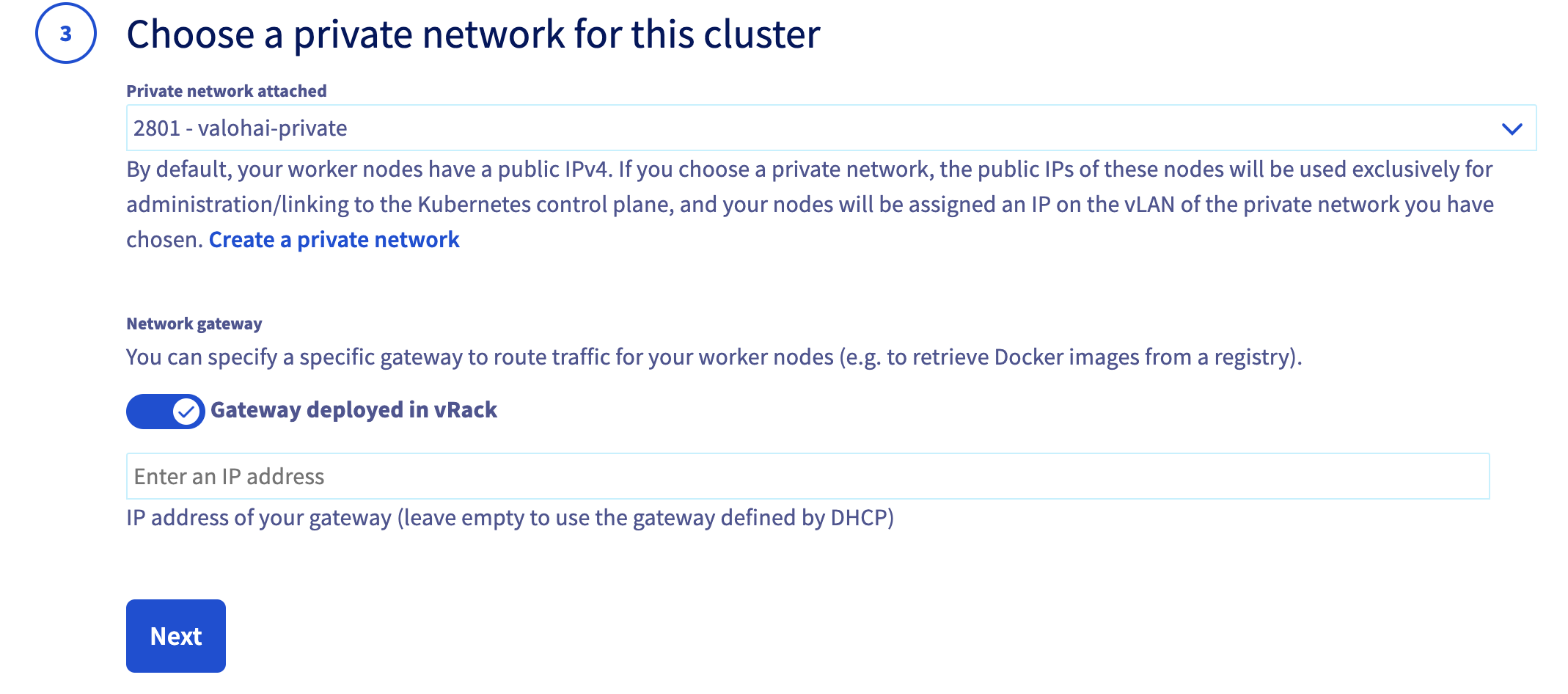
**Step 3 - Network configuration:**
* Select the private network created in Step 1
* Enable **OVHcloud Internet Gateway**
**Step 4 - Configure node pool:**
* Choose the node type you require
**Step 5 - Node pool size:**
* Enable **Autoscaling**
* Minimum: 1
* Maximum: Set to your requirements
**Step 6 - Name:**
* Provide a name for your Kubernetes cluster
Click **Create** to launch the cluster.
More details on Kubernetes clusters: [OVH Kubernetes Cluster Documentation](https://help.ovhcloud.com/csm/en-public-cloud-kubernetes-create-cluster?id=kb_article_view\&sysparm_article=KB0049685)
## Step 4: Install Valohai Workers
Wait until your node pool status is **OK** and autoscaling is **enabled**.
### Download kubeconfig
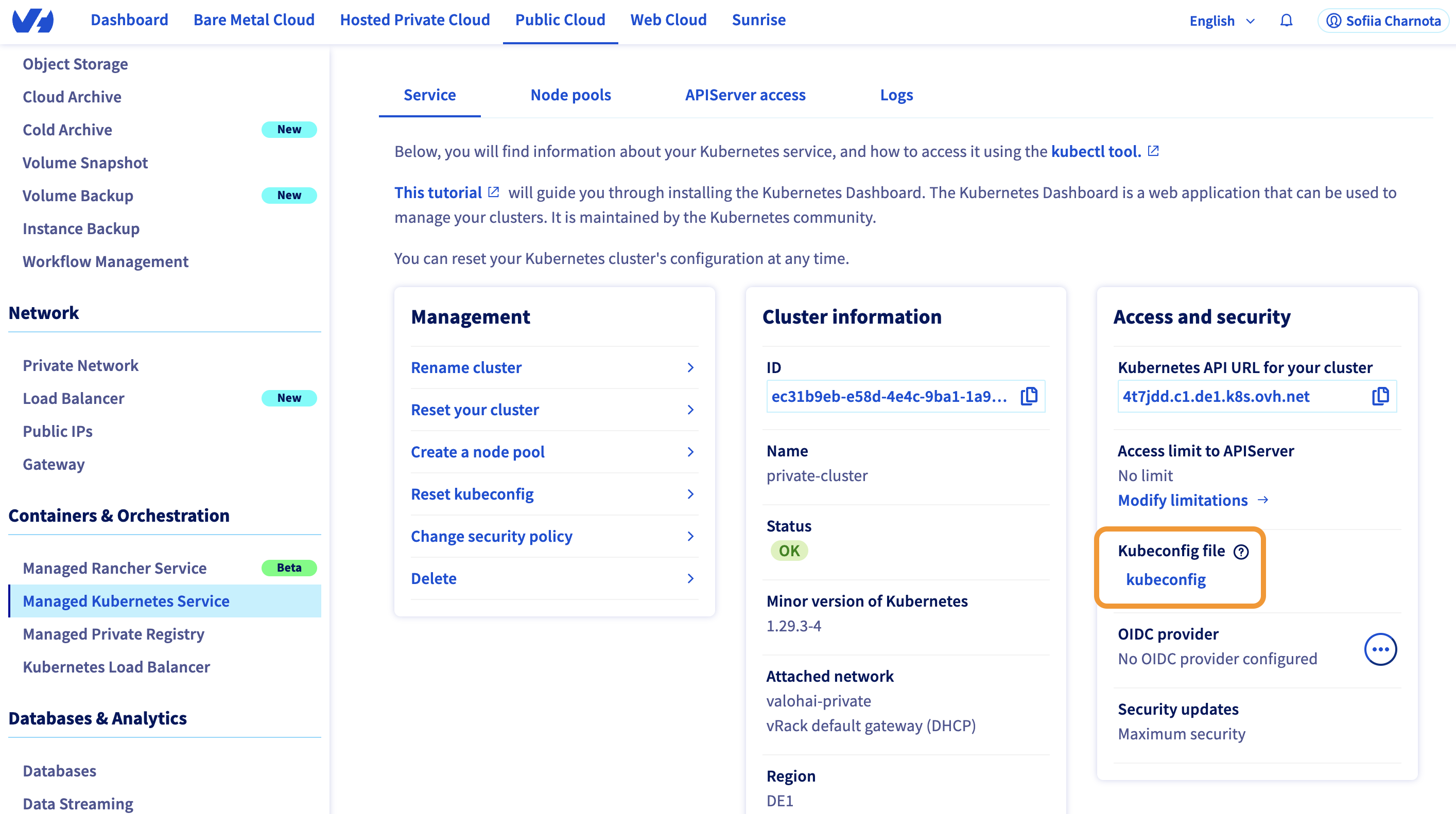
**1. Navigate to the Service tab**
Go to the **Service** tab of your cluster.
**2. Download kubeconfig**
Download the `kubeconfig` file.
### Configure kubectl
In your terminal, set the KUBECONFIG environment variable:
```bash
export KUBECONFIG=/kubeconfig.yml
```
### Install with Helm
Install Valohai workers using Helm:
```shell
helm repo add valohai --force-update https://dist.valohai.com/charts/
helm upgrade --install \
-n valohai-workers \
--create-namespace \
valohai-workers \
valohai/valohai-workers \
-f custom-values.yaml
```
> **Note:** Reach out to the Valohai team at to get your `custom-values.yaml` file.
More details on Valohai Kubernetes workers: [Valohai Kubernetes Workers Documentation](https://github.com/valohai/dokuhai/tree/main/kubernetes/workers.md)
## Step 5: Update Redis Authorized IP
### Get Gateway IP
**1. Navigate to Gateway**
Go back to the **Gateway** created in Step 1.
**2. Copy the public IP**
Copy the public IP of the gateway.
### Add IP to Redis
**1. Open Redis settings**
Navigate to your Redis instance settings.
**2. Add authorized IP**
Add the Gateway IP as another Authorized IP.
This ensures the Kubernetes cluster can communicate with Redis.
## Step 6: Final Steps
### Collect Information
Gather the following information to send to Valohai:
**Redis:**
* URI from the login information page in OVH
* Redis user credentials (username and password)
**Kubernetes:**
* `kubeconfig.yml` file generated by OVH
### Send to Valohai
Securely send the information to Valohai support at ****.
The Valohai team will complete the environment setup on the platform.
## Verify the Setup
After the environment is set up by the Valohai team:
**1. Log in to app.valohai.com**
* Check that OVH Kubernetes environments appear in your organization
**2. Run a test execution**
* Create a test project
* Run a simple execution
* Verify it runs on your OVH cluster
**3. Check results**
* Verify outputs are saved correctly
* Check execution logs
## Troubleshooting
### Cluster cannot reach Redis
**Check gateway IP:**
* Verify the gateway IP is added to Redis authorized IPs
* Ensure the IP matches the gateway's public IP
**Check network configuration:**
* Verify the cluster is in the same region as the private network
* Ensure Internet Gateway is enabled on the cluster
### Pods not starting
**Check node pool:**
* Verify autoscaling is enabled
* Check that nodes are being created
**Check kubeconfig:**
* Ensure KUBECONFIG is set correctly
* Test connection: `kubectl get nodes`
### Redis connection issues
**Verify Redis user permissions:**
* Check that all required commands are allowed
* Ensure allkeys and allchannels are set
**Check authorized IPs:**
* Verify both app.valohai.com IP and gateway IP are added
* Ensure IPs are in CIDR format (e.g., `x.x.x.x/32`)
## Getting Help
**Valohai Support:**
**Include in support requests:**
* OVH region
* Cluster name
* Redis instance name
* Error messages or logs
* Screenshots if helpful
---
# Agent Instructions
This documentation is published with GitBook. GitBook is the documentation platform designed so that both humans and AI agents can read, navigate, and reason over technical content effectively. Learn more at gitbook.com.
## Querying This Documentation
If you need additional information that is not directly available in this page, you can query the documentation by asking a question.
Perform an HTTP GET request on the following URL with the `ask` and `goal` query parameters:
```
GET https://docs.valohai.com/installation-and-setup/kubernetes/ovh.md?ask=&goal=
```
`ask` is the immediate question: it should be specific, self-contained, and written in natural language.
`goal` is what the user is ultimately trying to achieve, the reason they need the answer. Sharing it helps GitBook give you a better, more relevant answer. A goal is most helpful when it describes the outcome the user wants rather than restating the question. For example, with `ask=how do I create an API token`, a goal like `automate deployments from our CI pipeline` lets GitBook tailor the answer to that use case.
The response will contain a direct answer to the question and relevant excerpts and sources from the documentation.
Use this mechanism when the answer is not explicitly present in the current page, you need clarification or additional context, or you want to retrieve related documentation sections.