> For the complete documentation index, see [llms.txt](https://docs.valohai.com/llms.txt). Markdown versions of documentation pages are available by appending `.md` to page URLs; this page is available as [Markdown](https://docs.valohai.com/development-and-debugging/interactive-terminal.md).
# Interactive Terminal
### Overview
The Interactive Terminal feature allows you to interact with running executions directly through the Valohai interface, without requiring SSH connections or additional setup.
### Prerequisites
* Peon version `2025.10.22` or later installed on worker machines.
* In most cases you will get the latest version automatically but if you are unsure, please contact Valohai support.
### Usage
#### Enabling Interactive Terminal
To enable Interactive Terminal for an execution, add the `VH_INTERACTIVE` [environment variable](/executions/custom-environment-variables.md) and set its value to `true` or `1`.
Once enabled, an input field with **Send** and **Ctrl+C** buttons will appear below the execution logs, allowing you to send commands directly to the running process.
### How It Works
Interactive Terminal sends commands to the **currently executing process** specified in your Command section. It does not start new processes or create a separate shell session.
#### Example: Python Script
If your Command section contains:
```bash
python training_script.py
```
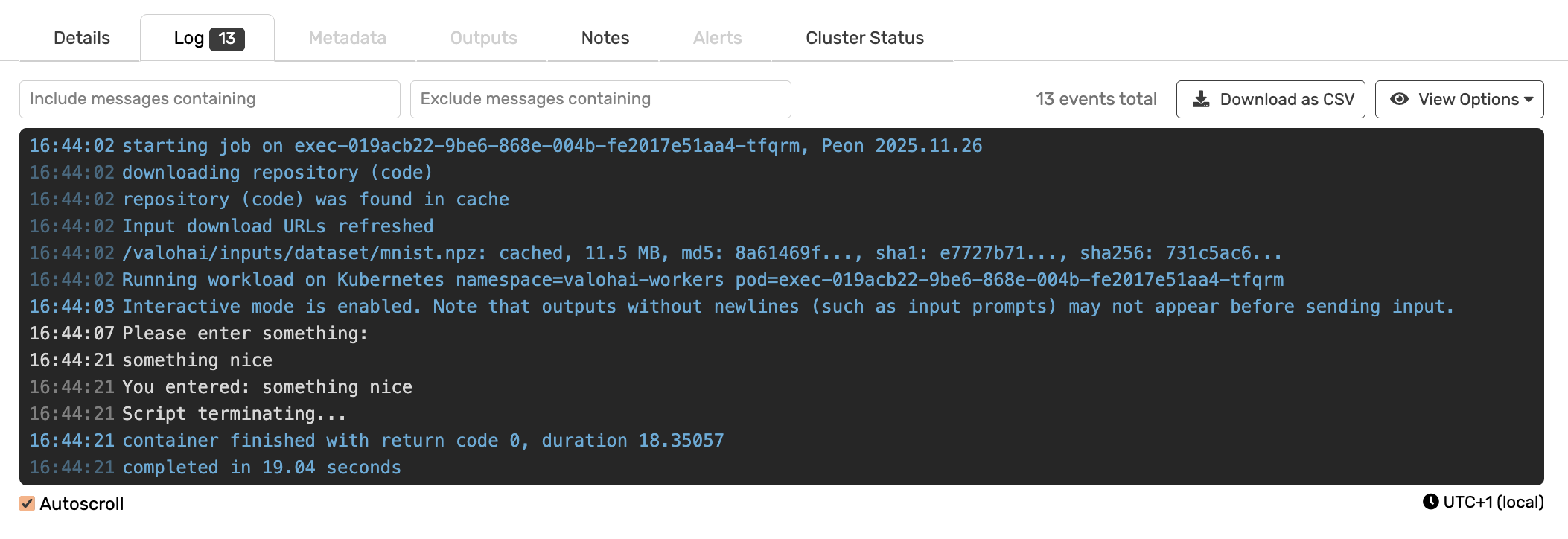
And you send the command `echo "something nice"` through the Interactive Terminal, this command will be executed in the shell but will not be sent as input to your running Python script unless specified in the code.\
To interact with your running script, you need to have something in the script that can handle direct inputs. For example, the following simple example will ask for an input and terminate the script once it is given:
```bash
python -c 'user_input = input("Please enter something: \n");
print(f"You entered: {user_input}");
print("Script terminating...")'
```
However, sending a **Ctrl+C** signal will stop the currently running process regardless of the input handling (assuming it properly handles KeyboardInterrupt/SIGINT signals).
### Use Cases
#### Debugging Failed Scripts
Set up a fallback shell when your script fails:
**Command section:**
```
python training_script.py || bash
```
If `training_script.py` returns a non-zero exit code, the `bash` command executes, allowing you to:
* Inspect produced files and logs
* Debug what caused the failure
* Move files to Valohai outputs for further inspection
This simulates an SSH connection to the container environment.
> :bulb:What if the script runs successfully but you still want to expect the results? You can use `&&` instead of `||` to enter interactive mode in that case. If you don't care about the result and want to enter the interactive mode regardless, use between `;` the commands.
#### Using Python's CLI Debugger
**Command section:**
```
python -m pdb training_script.py
```
The debugger will stop at the first line of code and wait for input. Use Interactive Terminal to send debugger commands such as `next`, `continue`, `list`, or any other pdb command.
#### Direct Shell Access
For the simplest interactive experience, use only a shell command:
**Command section:**
```
bash
```
(Use `sh` if `bash` is not available in your container image)
This provides an experience similar to an SSH connection, allowing you to:
* Manually run commands that would normally be in the Command section
* Inspect the execution environment interactively
### Important Considerations
#### Resource Management
**Always remember to stop executions running in Interactive mode.** While cloud environments will automatically stop after a period of inactivity (default: 8 hours without logs), leaving executions running can waste significant resources.
#### Limitations
* Avoid entering vim or similar editors, as escape sequences may not work properly
* The execution must be actively running to receive commands
### Getting Help
If you need assistance or clarification about the Interactive Terminal feature, please contact Valohai support.
---
# Agent Instructions
This documentation is published with GitBook. GitBook is the documentation platform designed so that both humans and AI agents can read, navigate, and reason over technical content effectively. Learn more at gitbook.com.
## Querying This Documentation
If you need additional information that is not directly available in this page, you can query the documentation by asking a question.
Perform an HTTP GET request on the following URL with the `ask` and `goal` query parameters:
```
GET https://docs.valohai.com/development-and-debugging/interactive-terminal.md?ask=&goal=
```
`ask` is the immediate question: it should be specific, self-contained, and written in natural language.
`goal` is what the user is ultimately trying to achieve, the reason they need the answer. Sharing it helps GitBook give you a better, more relevant answer. A goal is most helpful when it describes the outcome the user wants rather than restating the question. For example, with `ask=how do I create an API token`, a goal like `automate deployments from our CI pipeline` lets GitBook tailor the answer to that use case.
The response will contain a direct answer to the question and relevant excerpts and sources from the documentation.
Use this mechanism when the answer is not explicitly present in the current page, you need clarification or additional context, or you want to retrieve related documentation sections.