> For the complete documentation index, see [llms.txt](https://docs.valohai.com/llms.txt). Markdown versions of documentation pages are available by appending `.md` to page URLs; this page is available as [Markdown](https://docs.valohai.com/development-and-debugging/pycharm-remote-debugging.md).
# PyCharm Remote Debugging
A
ttach PyCharm's professional debugger to your Valohai execution for interactive debugging with breakpoints, variable inspection, and step-through execution.
**What you'll accomplish:**
* Set breakpoints in PyCharm on code running in Valohai
* Inspect and modify variables in real-time
* Step through execution line-by-line on cloud infrastructure
> ⚠️ **PyCharm Professional required** - Remote debugging is only available in PyCharm Professional, not Community Edition.
***
### Prerequisites
Before starting, ensure you have:
1. **SSH access configured** - Follow [SSH Overview](/development-and-debugging/ssh-overview.md) to set up keys and firewall rules
2. **PyCharm Professional** installed
3. **SSH private key** from the SSH setup
***
### Configure PyCharm Debug Server
#### Create Debug Configuration
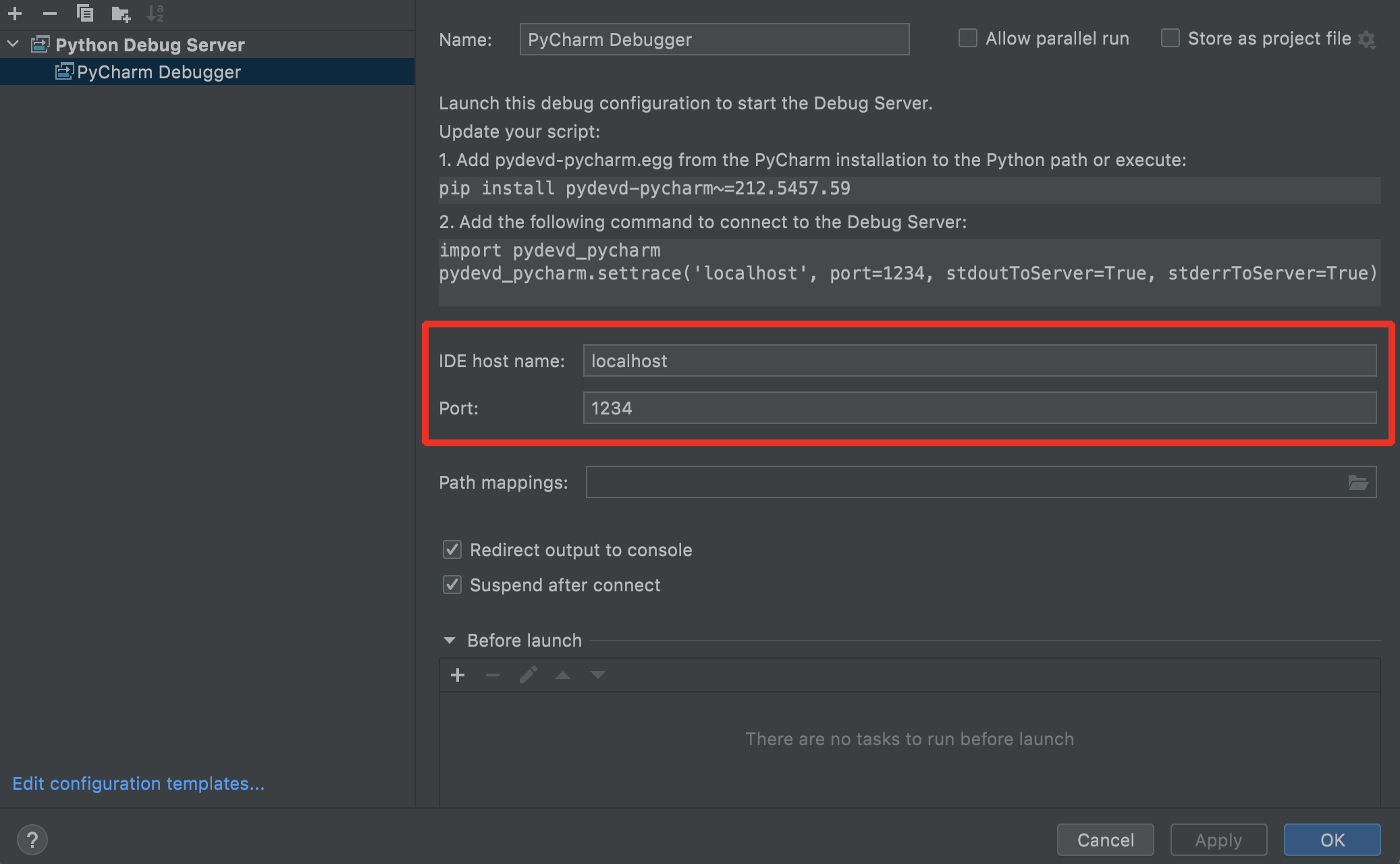
1. Open **Run** → **Edit Configurations**
2. Click **+** → **Python Debug Server**
3. Configure:
* **Name:** `Valohai Remote Debug`
* **IDE host name:** `localhost`
* **Port:** `1234` (local port for incoming connections)
4. Click **OK**
#### Start Debug Server
Click the debug icon next to your new configuration. PyCharm will start listening for connections.
**Keep this running** - Your Valohai execution will connect to this server.
***
### Add pydevd-pycharm to Your Code
PyCharm's `pydevd-pycharm` package enables remote debugging. Install it and add connection logic to your training script.
#### Python Code
```python
import pydevd_pycharm
import numpy as np
import time
# Try connecting to PyCharm debug server
connected = False
while not connected:
try:
# Connect to debug server via SSH tunnel
# Port 1234 is the container-side port (mapped through SSH)
pydevd_pycharm.settrace(
"localhost",
port=1234,
stdoutToServer=True,
stderrToServer=True,
)
connected = True
except Exception:
print("Waiting for PyCharm debug connection...")
time.sleep(10)
# Your training code runs after debugger connects
for x in range(1, 20):
print(f"Doing computation {x}")
data = np.random.random((50, 50))
sum = np.sum(data)
time.sleep(2)
```
**Key points:**
* `settrace('localhost', port=1234)` - Connects to PyCharm through SSH tunnel
* Retry loop ensures connection even if PyCharm isn't ready yet
* `stdoutToServer=True` - Routes print statements to PyCharm console
#### valohai.yaml
```yaml
- step:
name: train
image: python:3.9
command:
- pip install numpy pydevd-pycharm~=
- python train.py
```
**Replace ``** with your PyCharm version (e.g., `241.14494.240` for PyCharm 2024.1). Find your version in **Help** → **About**.
> 💡 *The execution will loop at `settrace()` until PyCharm connects. This keeps it running without needing `sleep` commands.*
***
### Start Execution with SSH
Launch your execution with SSH debugging enabled:
**Web UI:**
1. Enable **Run with SSH**
2. Paste public key or auto-generate
3. Start execution
**Command Line:**
```shell
vh exec run --adhoc --debug-key-file=/path/to/key.pub --debug-port 2222 train
```
**Wait for the IP address** in execution logs:
```
SSH connection available at: 52.214.159.193:2222
```
***
### Connect PyCharm to Execution
#### Establish Reverse SSH Tunnel
PyCharm's debug server listens locally, so we need a **reverse tunnel** that lets the remote execution connect back to your machine.
```shell
ssh -i /path/to/private-key -p 2222 -R 1234:localhost:1234 -t /bin/bash
```
**What this does:**
* Connects to Valohai execution via SSH
* Forwards container port 1234 → your local port 1234 (reverse tunnel)
* Opens the bash shell in the container
> 💡 *Keep this terminal window open while debugging.*
#### Handle Path Mapping
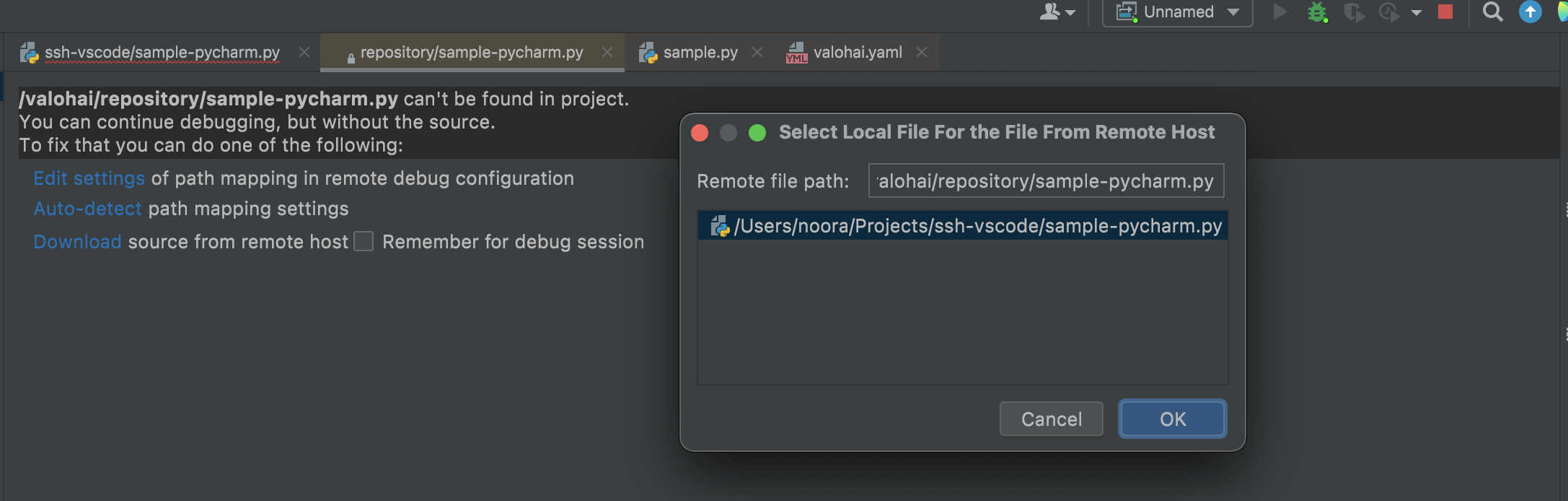
When PyCharm first connects, you may see:
**Solution:** Click **Auto-detect** to map container paths to your local project.
#### Verify Connection
Check the PyCharm **Debugger** console - you should see:
```
Connected to pydev debugger (build 241.14494.240)
```
Your code will pause at the next breakpoint or line.
***
### Debug Your Code
Once connected, you can:
* **Set breakpoints** - Click left of line numbers in editor
* **Inspect variables** - View in Variables panel or hover in editor
* **Evaluate expressions** - Use Console to run Python during breakpoint
* **Step through code** - F8 (step over), F7 (step into), Shift+F8 (step out)
* **Modify variables** - Right-click variable → Set Value
Click the **Resume** button (green arrow) to start execution after connection.
***
### Common Issues
**PyCharm can't establish connection?**
* Verify debug server is running in PyCharm
* Ensure SSH tunnel is active (check terminal)
* Confirm execution hasn't timed out
**Version mismatch error?**
* Update `pydevd-pycharm~=` in valohai.yaml to match your PyCharm version
* Find version in **Help** → **About** → copy build number
**Path mapping not working?**
* Click **Auto-detect** when prompted
* Manually add mapping: Local path → `/valohai/repository`
**Execution exits before connecting?**
* The retry loop should prevent this
* Check execution logs for `pip install` errors
* Verify PyCharm debug server started before execution
***
### Next Steps
* [VS Code Remote Debugging](/development-and-debugging/vs-code-remote-debugging.md) - Alternative IDE debugging
* [SSH Overview](/installation-and-setup/advanced-topics/configure-ssh-access.md) - Learn about direct SSH access and tunneling
---
# Agent Instructions
This documentation is published with GitBook. GitBook is the documentation platform designed so that both humans and AI agents can read, navigate, and reason over technical content effectively. Learn more at gitbook.com.
## Querying This Documentation
If you need additional information that is not directly available in this page, you can query the documentation by asking a question.
Perform an HTTP GET request on the following URL with the `ask` and `goal` query parameters:
```
GET https://docs.valohai.com/development-and-debugging/pycharm-remote-debugging.md?ask=&goal=
```
`ask` is the immediate question: it should be specific, self-contained, and written in natural language.
`goal` is what the user is ultimately trying to achieve, the reason they need the answer. Sharing it helps GitBook give you a better, more relevant answer. A goal is most helpful when it describes the outcome the user wants rather than restating the question. For example, with `ask=how do I create an API token`, a goal like `automate deployments from our CI pipeline` lets GitBook tailor the answer to that use case.
The response will contain a direct answer to the question and relevant excerpts and sources from the documentation.
Use this mechanism when the answer is not explicitly present in the current page, you need clarification or additional context, or you want to retrieve related documentation sections.