> For the complete documentation index, see [llms.txt](https://docs.valohai.com/llms.txt). Markdown versions of documentation pages are available by appending `.md` to page URLs; this page is available as [Markdown](https://docs.valohai.com/genai/llm-evaluations-local-execution/organizing-your-evaluations-with-datasets.md).
# Organizing your evaluations with Datasets
Datasets in Valohai LLM organize your evaluation data into versioned collections of samples. Each dataset can have multiple versions, and each version contains a set of JSON samples that you use when running evaluation tasks.
This guide walks you through creating and managing datasets, from structuring your data to using datasets in your evaluation code.
### Quick start: Creating your first dataset
#### Step 1: Create a dataset
1. Navigate to your workspace and open the **Datasets** page from the sidebar.
2. Click **Create new dataset**.
3. Enter a **name** for your dataset (e.g., "Customer Support QA").
4. Enter a **slug** — a short, URL-friendly identifier (e.g., `customer-support-qa`). The slug is auto-generated from the name, but you can customize it.
5. Click **Create**.
**Important:** The dataset slug cannot be changed after creation. Choose a descriptive, stable identifier. Slugs must be lowercase alphanumeric with hyphens between words (e.g., `mmlu`, `my-eval-data`).
#### Step 2: Create a version
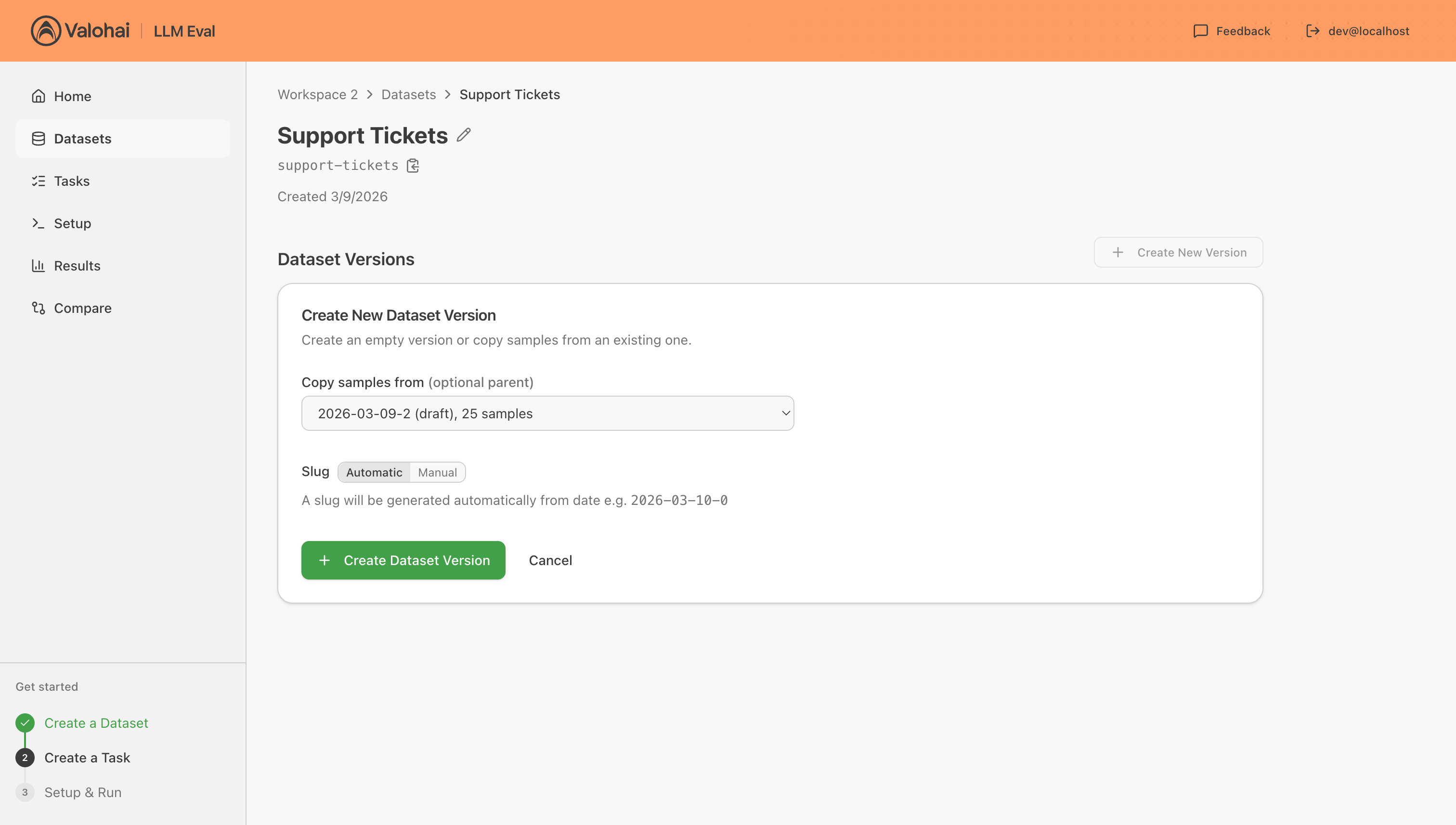
1. Open your newly created dataset.
2. Click **Create new version**.
3. Choose a slug mode:
* **Automatic** generates a date-based slug like `2026-03-09-0`.
* **Manual** lets you set a custom slug like `v1` or `initial`.
4. Click **Create Dataset Version**.
#### Step 3: Add samples
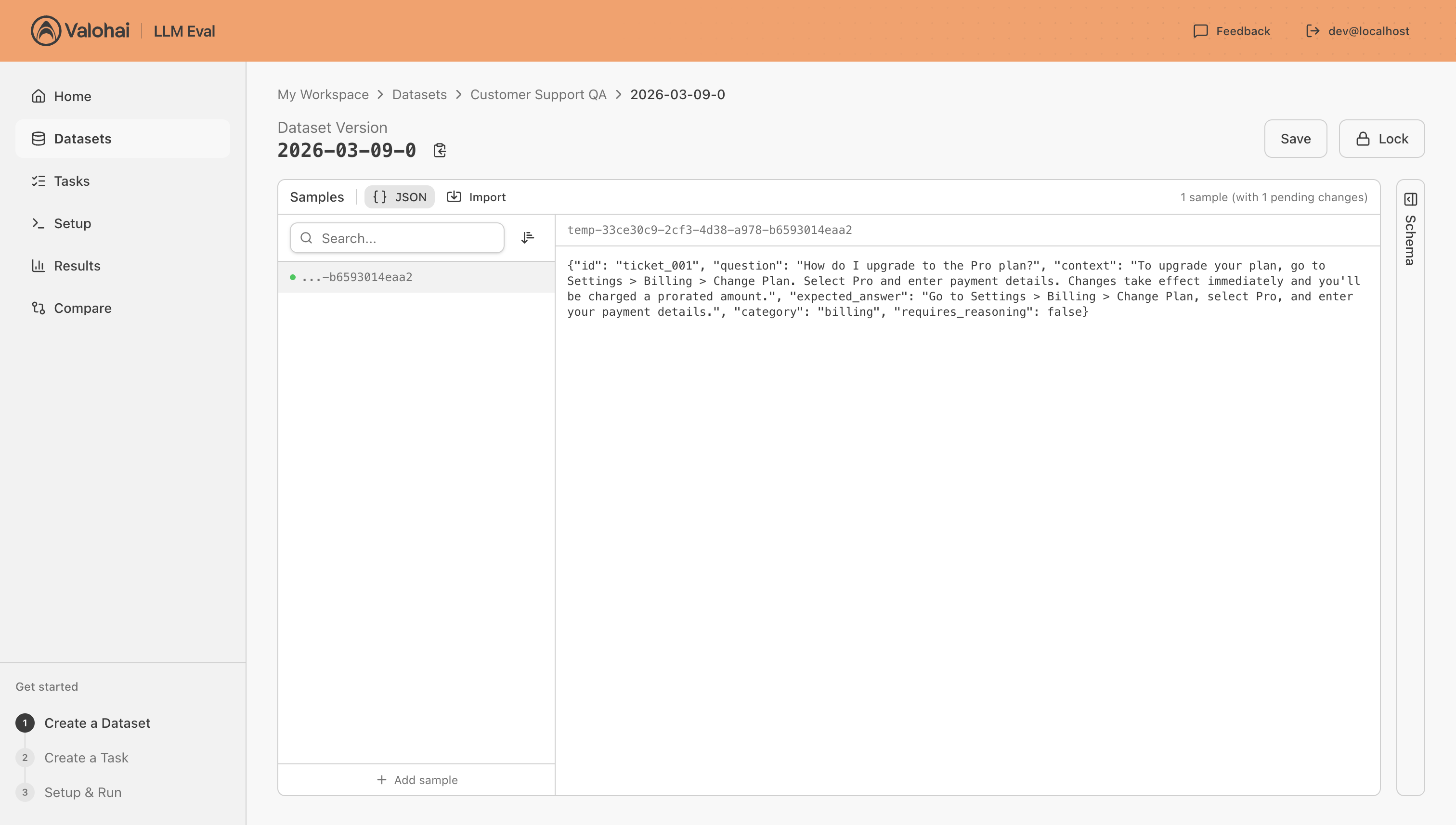
1. Open the new version to see the sample editor.
2. Click **Add sample** at the bottom of the sample list.
3. Edit the sample content in the JSON editor on the right. Each sample must be a valid JSON object.
4. Add more samples as needed.
5. Click **Save** to persist your changes.
#### Step 4: Lock the version
Once your samples are finalized:
1. Click the **Lock** button in the top-right corner.
2. Confirm the action.
The version is now immutable — it cannot be edited or deleted. This ensures reproducibility when you use it in evaluation tasks.
#### Step 5: Attach the dataset to a task
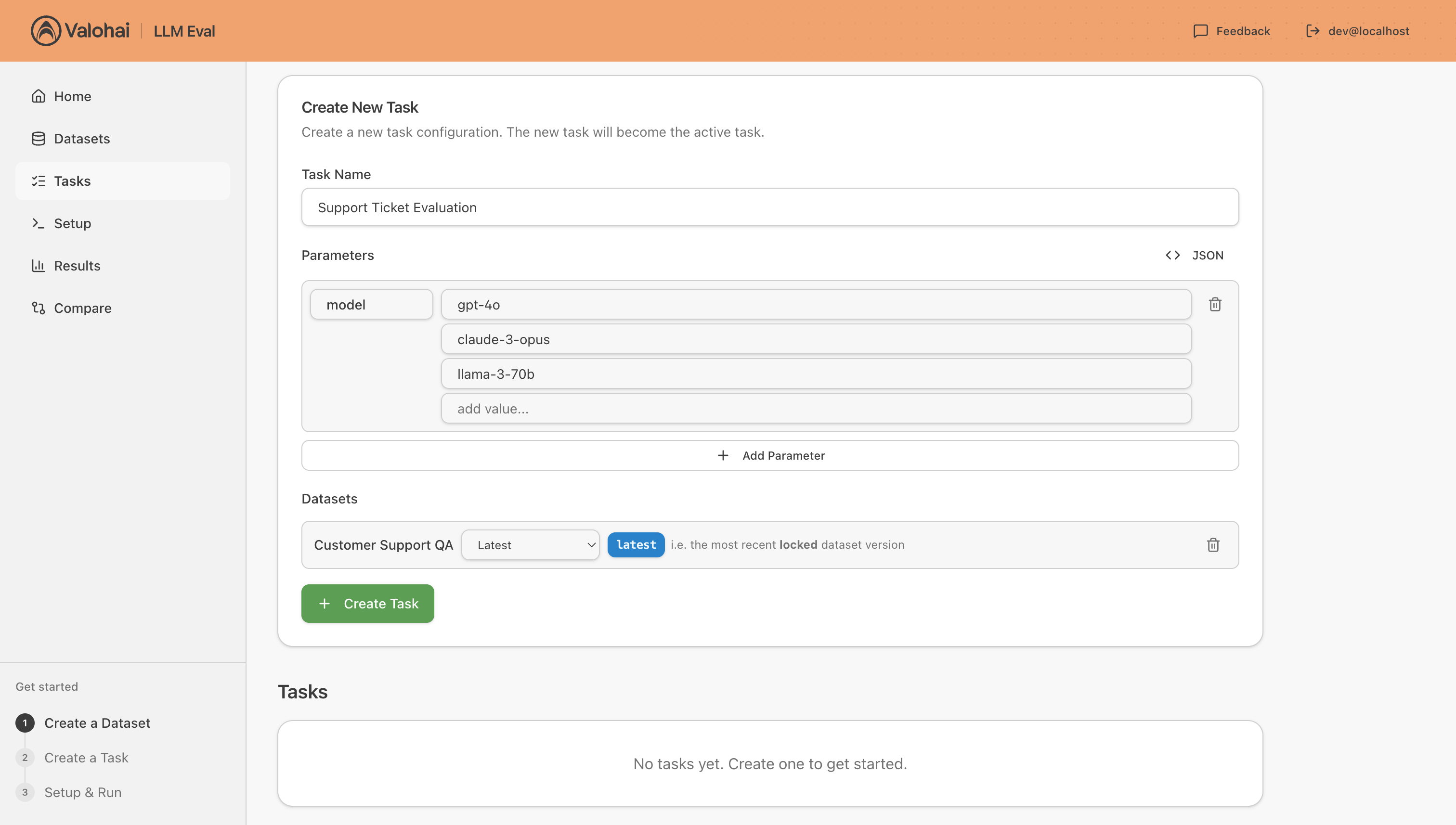
When creating a new evaluation task:
1. In the task creation form, find the **Datasets** section.
2. Click **Add Dataset** and select your dataset.
3. Choose either:
* **Latest** — always uses the most recently locked version.
* **Pick version** — select a specific locked version.
4. Create the task.
***
### How to structure a dataset
A dataset represents a single collection of evaluation data with a consistent schema. Each **sample** in a dataset is a JSON object.
#### What constitutes a single dataset?
A dataset should group samples that:
* Share the **same structure** (same JSON keys and value types).
* Are used for the **same evaluation purpose** (e.g., all samples for a particular benchmark or test suite).
* Make sense to **version together** (when you update one sample, the others in the same dataset are part of the same test set).
#### Examples
**Good dataset structure** — a QA evaluation dataset:
```json
{"question": "What is the capital of France?", "expected_answer": "Paris", "category": "geography"}
{"question": "Who wrote Hamlet?", "expected_answer": "Shakespeare", "category": "literature"}
```
**Good dataset structure** — a summarization benchmark:
```json
{"input_text": "Long article text here...", "reference_summary": "Short summary.", "domain": "news"}
{"input_text": "Another article...", "reference_summary": "Another summary.", "domain": "science"}
```
**Avoid** putting unrelated evaluation data into the same dataset. If you have a QA benchmark and a summarization benchmark, create separate datasets for each.
***
### Versions: Draft vs. locked
Every dataset version has one of two states:
| State | Editable | Can be used in tasks | Icon |
| ---------- | ------------------------------- | -------------------- | ------------------- |
| **Draft** | Yes — add, edit, remove samples | No | Gray "Draft" badge |
| **Locked** | No — fully immutable | Yes | Dark "Locked" badge |
#### Draft versions
When you create a new version, it starts as a **draft**. In this state you can:
* Add new samples
* Edit existing samples
* Remove samples
* Import samples from JSONL files
Draft versions cannot be attached to tasks. This ensures you don't accidentally run evaluations against incomplete or changing data.
#### Locked versions
When you lock a version, it becomes **immutable**. No samples can be added, edited, or removed. Locked versions can be attached to evaluation tasks.
**Locking is irreversible.** Once locked, a version stays locked permanently. This is by design — it guarantees that evaluation results always reference a fixed, known dataset.
#### The "latest" badge
The most recently locked version of a dataset gets a **"latest"** badge. When you attach a dataset to a task using the "Latest" option, this is the version that will be used.
***
### When to create a new version
Create a **new version** when:
* You want to **add or remove samples** from an existing dataset (e.g., expanding your test suite).
* You want to **correct errors** in samples (e.g., fixing a wrong expected answer).
* You want to **update the data format** (e.g., adding a new field to all samples).
Each new version is an independent snapshot. Your previous locked versions remain untouched, so older evaluation results still reference their original data.
***
### When to copy a version
Use the **copy** feature when you want to create a new version that starts with all the samples from an existing version. This is useful when:
* You want to **iterate on a locked version** — make small adjustments to an already-finalized dataset.
* You want to **extend an existing version** — add more samples while keeping the originals.
* You want to **create a variant** — e.g., a harder subset of your evaluation data.
#### How to copy a version
1. In the version table on the dataset detail page, find the version you want to copy.
2. Click the **copy button** (the copy-plus icon in the Actions column).
3. The version creation form opens with that version pre-selected in the "Copy samples from" dropdown.
4. Choose a slug (automatic or manual) and click **Create**.
The new draft version starts with the same samples as the parent. The parent version is tracked and you can see which version a copy was derived from in the "Parent" column.
**Note:** Copying is efficient. Samples are shared internally until you edit them, at which point only the changed sample gets a new copy (copy-on-write).
***
### Editing and importing samples
#### Editing samples in the UI
1. Open a **draft** version.
2. Select a sample from the list on the left.
3. Edit the JSON in the editor panel on the right.
4. Changes are tracked locally until you click **Save**. You'll see indicators:
* **Green dot** is a newly added sample
* **Yellow dot** is an edited sample
5. Click **Save** to persist all pending changes at once.
#### Adding individual samples
Click **Add sample** at the bottom of the sample list. A new empty sample is created and selected for editing.
#### Duplicating samples
Hover over a sample in the list and click the **copy icon**. This creates a new sample with the same content, which you can then modify.
#### Removing samples
Hover over a sample and click the **trash icon**. The sample is marked for removal and will be deleted when you save.
#### Importing from JSONL
For bulk data, use the **Import** tab:
1. Open a draft version and switch to the **Import** tab in the left panel.
2. Either:
* **Drag and drop** a `.jsonl` file onto the import area.
* Click **Pick File** to select a file (`.jsonl`, `.json`, or `.txt`).
* **Paste** JSONL content directly into the text area.
3. The importer validates each line. Invalid lines are highlighted in red with line numbers.
4. Click **Import** to add all valid samples to the version.
**JSONL format:** Each line must be a valid JSON object. One sample per line.
```
{"question": "What is 2+2?", "answer": "4"}
{"question": "What is the speed of light?", "answer": "299,792,458 m/s"}
```
***
### Using dataset slugs in your code
Datasets and their versions are identified by **slugs** — human-readable identifiers that remain stable over time.
#### Slug format
* **Dataset slug:** `my-dataset` (unique within a workspace)
* **Version slug:** `2026-03-09-0` or `v1` (unique within a dataset)
* **Full slug:** `my-dataset/2026-03-09-0` (combines both)
#### Referencing datasets in evaluation results
When your instrumentation code reports results, you can include the dataset slug in the labels. The system automatically splits the full slug into separate `dataset` and `dataset_version` labels for filtering and grouping.
```python
# In your instrumentation code, pass the full slug as a label:
labels = {
"model": "gpt-4",
"dataset": "customer-support-qa/2026-03-09-0", # full slug
}
```
This gets automatically expanded into two separate labels on ingestion:
* `dataset` = `customer-support-qa`
* `dataset_version` = `2026-03-09-0`
You can then filter and group your results by dataset and version independently.
#### Getting datasets from a task
When you create a task with datasets attached, your evaluation code can fetch the current task to get download URLs for each dataset version:
```python
# GET /api/ingest/current-task/ returns:
{
"id": "...",
"name": "my-eval-task",
"parameters": {"temperature": 0.7},
"datasets": [
{
"id": "version-uuid",
"name": "customer-support-qa/2026-03-09-0", # full slug
"download_url": "https://..." # presigned URL to JSONL file
}
]
}
```
The `download_url` points to a JSONL file containing all samples in the dataset version. Download it and iterate over the lines to get your evaluation samples.
```python
import httpx
import json
# Fetch the current task
task = httpx.get(
f"{base_url}/api/ingest/current-task/",
headers={"Authorization": f"Bearer {api_key}"},
).json()
# Download and iterate over dataset samples
for dataset in task["datasets"]:
response = httpx.get(dataset["download_url"])
samples = [json.loads(line) for line in response.text.strip().split("\n")]
for sample in samples:
# Run your evaluation against each sample
result = evaluate(sample, model="gpt-4")
# Report the result with the dataset slug as a label
ingest_result(
task=task["name"],
labels={
"model": "gpt-4",
"dataset": dataset["name"], # full slug, auto-split on ingestion
},
metrics={"accuracy": result.accuracy, "latency_ms": result.latency},
)
```
#### Choosing "Latest" vs. a specific version
When attaching a dataset to a task:
* **Latest** always resolves to the most recently locked version. Use this for ongoing evaluations where you want results against the freshest data.
* **Pick version** pins a specific version. Use this for reproducible benchmarks where you need results tied to an exact dataset snapshot.
---
# Agent Instructions
This documentation is published with GitBook. GitBook is the documentation platform designed so that both humans and AI agents can read, navigate, and reason over technical content effectively. Learn more at gitbook.com.
## Querying This Documentation
If you need additional information that is not directly available in this page, you can query the documentation by asking a question.
Perform an HTTP GET request on the following URL with the `ask` and `goal` query parameters:
```
GET https://docs.valohai.com/genai/llm-evaluations-local-execution/organizing-your-evaluations-with-datasets.md?ask=&goal=
```
`ask` is the immediate question: it should be specific, self-contained, and written in natural language.
`goal` is what the user is ultimately trying to achieve, the reason they need the answer. Sharing it helps GitBook give you a better, more relevant answer. A goal is most helpful when it describes the outcome the user wants rather than restating the question. For example, with `ask=how do I create an API token`, a goal like `automate deployments from our CI pipeline` lets GitBook tailor the answer to that use case.
The response will contain a direct answer to the question and relevant excerpts and sources from the documentation.
Use this mechanism when the answer is not explicitly present in the current page, you need clarification or additional context, or you want to retrieve related documentation sections.