> For the complete documentation index, see [llms.txt](https://docs.valohai.com/llms.txt). Markdown versions of documentation pages are available by appending `.md` to page URLs; this page is available as [Markdown](https://docs.valohai.com/installation-and-setup/advanced-topics/shared-cache.md).
# Shared Cache
Configure a shared network cache between Valohai workers to optimize access to large datasets and reduce download times from cloud storage.
## How Valohai Cache Works
Most Valohai machine learning jobs have input files downloaded from cloud object storage like AWS S3, Azure Blob Storage, or GCP Cloud Storage.
### Default Behavior (On-Worker Cache)
By default, each Valohai worker (virtual machine) has its own local cache:
**How it works:**
1. Worker downloads input data from cloud storage
2. Data is cached locally on the worker's disk
3. If the same data is needed again on the same worker, it's read from cache
4. When the machine is no longer used (after a configurable grace period), it scales down
5. The local cache is removed with the machine
6. The next time a machine scales up, it downloads input files to its own cache again
**Limitations:**
* Each new worker downloads data independently
* Cache is lost when workers scale down
* No sharing of cached data between workers
### Shared Cache Behavior
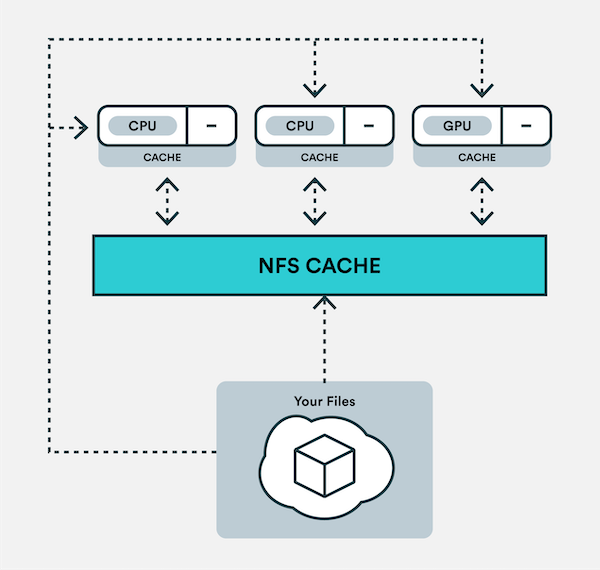
With a shared network cache, input data is stored on an NFS or SMB network mount accessible by multiple workers.
**How it works:**
1. Worker needs input data
2. Worker checks shared network cache
3. If data exists in cache, worker reads from network mount
4. If data doesn't exist, worker downloads from cloud storage to the cache
5. Other workers can immediately access the cached data
6. Cache persists even when workers scale down
**Benefits:**
* Workers can share cached data
* Faster job startup for frequently-used datasets
* Reduced data transfer costs from cloud storage
* Cache persists across worker lifecycles
> **Note:** Users still provide Valohai inputs by providing the URL to the file. Valohai handles authenticating with object storage, downloading the dataset to the shared cache, and versioning that input file with the execution, the same as standard executions.
## When to Use Shared Cache
Shared cache is beneficial when:
**Large datasets (100GB+):**
* You have large datasets that you access often from different workers
* Download time from cloud storage is significant
* Multiple workers need the same data
**Parallel workloads:**
* You're running Valohai Tasks with multiple parallel GPU instances
* All instances download the same dataset from cloud object storage
* Startup time is critical
**Very large datasets (TBs):**
* You have terabytes of data that takes a long time to download from object storage
* The cost of repeated downloads is significant
**Not recommended when:**
* Datasets are small (<10GB)
* Each job uses unique datasets
* Network mount would be slower than local disk
* You have sufficient instance cache time
## Architecture
**Components:**
**Network Mount (NFS/SMB):**
* Shared file system accessible by all workers
* Stores cached input files
* Persists independently of worker lifecycle
**Workers:**
* Connect to network mount
* Read cached files when available
* Download to cache when files are missing
**Valohai:**
* Manages cache versioning
* Tracks which files are cached
* Handles authentication with cloud storage
## Set Up a Shared Cache
### Step 1: Configure Network Mount
You'll need to set up an NFS or SMB network mount in your cloud or on-premises environment.
**Key requirement:** Verify that workers can access the network mount.
**Cloud-specific guides below:**
* [AWS EFS](#configure-aws-efs)
* [GCP Filestore](#configure-gcp-filestore)
* [Azure Files](#configure-azure-files)
* [On-premises NFS](#configure-on-premises-nfs)
### Configure AWS EFS
You can use an existing EFS or create a new one.
**Requirements:**
* Create EFS in the same VPC where all Valohai resources are located
* OR set up VPC peering between the two VPCs
* Use the same region where your workers are located
**Create EFS:**
1. Navigate to **Amazon EFS** in AWS Console
2. Click **Create file system**
3. Configure:
* VPC: Select your Valohai VPC
* Availability and durability: Regional (recommended)
* Performance mode: General Purpose (or Max I/O for high throughput)
4. Configure network access:
* Mount targets in each availability zone
* Security group must allow NFS traffic (port 2049) from worker security group
5. Create the file system
**Note the EFS DNS name** (e.g., `fs-1234aa12.efs.eu-west-1.amazonaws.com`)
**Mount target format:**
```
fs-1234aa12.efs.eu-west-1.amazonaws.com:/
```
### Configure GCP Filestore
You can use an existing Filestore or create a new one.
**Requirements:**
* Create Filestore in the same VPC where all Valohai resources are located
* Grant access to all clients on the VPC network
**Create Filestore:**
1. Navigate to **Filestore** in GCP Console
2. Click **Create instance**
3. Configure:
* Instance ID: `valohai-cache`
* Instance type: Basic (or High Scale for large workloads)
* Storage capacity: Based on your dataset sizes
* Region: Same as your workers
* VPC network: Your Valohai VPC
4. Configure access:
* File share name: `valohai_cache`
* Grant access to all clients on the network
5. Create the instance
**Note the IP address and file share name** (e.g., `10.123.12.123:/valohai_cache`)
**Mount target format:**
```
10.123.12.123:/valohai_cache
```
### Configure Azure Files
You can use an existing Azure Files share or create a new one.
**Requirements:**
* Storage account in the same region as workers
* Premium file share recommended for performance
* Private endpoint or service endpoint for secure access
**Create Azure Files:**
1. Navigate to **Storage accounts** in Azure Portal
2. Create or select a storage account
3. Navigate to **File shares**
4. Click **+ File share**
5. Configure:
* Name: `valohai-cache`
* Tier: Premium (recommended) or Transaction optimized
* Provisioned capacity: Based on your needs
6. Create the file share
**Configure network access:**
* Set up private endpoint or service endpoint
* Ensure worker subnet can access the storage account
**Get connection details:**
* Storage account name: `mystorageaccount`
* File share name: `valohai-cache`
* Access key: From storage account keys
**Mount target format:**
```
//mystorageaccount.file.core.windows.net/valohai-cache
```
### Configure On-Premises NFS
For on-premises environments, set up an NFS server accessible to workers.
**Requirements:**
* NFS server accessible from worker network
* Sufficient storage capacity
* Performance appropriate for your workload
**Basic NFS server setup (Ubuntu):**
```shell
# Install NFS server
sudo apt-get update
sudo apt-get install nfs-kernel-server
# Create shared directory
sudo mkdir -p /mnt/valohai-cache
sudo chown nobody:nogroup /mnt/valohai-cache
sudo chmod 777 /mnt/valohai-cache
# Configure exports
sudo nano /etc/exports
# Add line:
/mnt/valohai-cache 10.0.0.0/24(rw,sync,no_subtree_check,no_root_squash)
# Apply configuration
sudo exportfs -ra
sudo systemctl restart nfs-kernel-server
```
**Mount target format:**
```
nfs-server.example.com:/mnt/valohai-cache
```
## Step 2: Send Details to Valohai
After configuring your network mount, send the following information to your Valohai contact at ****:
**Required information:**
**Network mount address:**
* AWS: `fs-1234aa12.efs.eu-west-1.amazonaws.com:/`
* GCP: `10.123.12.123:/valohai_cache`
* Azure: `//mystorageaccount.file.core.windows.net/valohai-cache`
* On-premises: `nfs-server.example.com:/mnt/valohai-cache`
**Environments to configure:**
* List specific environments you want to use the shared cache
* OR configure all environments to use the shared cache
**Optional: Copy behavior:**
* By default, workers access files directly from the network mount
* Optionally, configure workers to copy data from NFS to local directory before starting a job
* Specify per environment if needed
## Configuration Options
### Direct Access (Default)
Workers read files directly from the network mount.
**Pros:**
* No additional copy time
* Lower local disk usage
* Immediate access to cached data
**Cons:**
* Network performance affects job performance
* All I/O goes over network
**Best for:**
* Sequential read workloads
* Large files that don't fit on local disk
* Fast network connections
### Copy to Local Disk
Workers copy files from network mount to local disk before job starts.
**Pros:**
* Job runs at local disk speed
* No network I/O during job execution
* Better for random access patterns
**Cons:**
* Additional copy time at job start
* Requires sufficient local disk space
* Data copied multiple times if reused
**Best for:**
* Random access workloads
* Jobs with many small file operations
* When local disk is faster than network
## Performance Considerations
### Network Mount Performance
**AWS EFS:**
* Throughput scales with storage size (Bursting mode)
* Or use Provisioned Throughput mode for consistent performance
* Max I/O mode for high parallel access
**GCP Filestore:**
* Performance based on capacity tier
* Basic: Up to 100 MB/s per TB
* High Scale: Up to 480 MB/s per TB
**Azure Files:**
* Premium tier recommended for ML workloads
* Performance scales with provisioned capacity
* Up to 100,000 IOPS for premium
### Worker Configuration
**Local disk for temp files:**
* Configure jobs to write temporary files to local disk
* Only use network mount for cached inputs
* Reduces network I/O
**Parallel access:**
* NFS performs well with many parallel readers
* Avoid many workers writing to the same files
* Consider sharding large datasets
## Monitoring and Maintenance
### Monitor Cache Usage
**Storage space:**
* Monitor available space on network mount
* Set up alerts for high usage
* Plan for growth
**Performance:**
* Monitor throughput and IOPS
* Check for network bottlenecks
* Review job startup times
### Cache Cleanup
Valohai automatically manages cached files:
* Tracks which files are accessed
* Removes least-recently-used files when space is low
* Maintains cache versioning
**Manual cleanup (if needed):**
* Coordinate with Valohai support
* Don't delete files manually without consulting Valohai
* Valohai tracks cache state internally
## Troubleshooting
### Workers can't access network mount
**Check network connectivity:**
AWS EFS:
```shell
# From worker
telnet fs-1234aa12.efs.eu-west-1.amazonaws.com 2049
```
GCP Filestore:
```shell
# From worker
ping 10.123.12.123
showmount -e 10.123.12.123
```
**Check security groups/firewall:**
* AWS: Security group allows NFS (port 2049)
* GCP: Firewall rules allow NFS traffic
* Azure: Network security groups allow SMB (port 445)
### Slow job startup
**Check network performance:**
* Test mount performance from worker
* Consider copy-to-local configuration
* Review network mount performance tier
**Check file sizes:**
* Large files take time to download/cache
* Consider splitting datasets
* Use compression if appropriate
### Cache fills up
**Monitor storage:**
* Check available space
* Review cache cleanup settings
* Consider increasing storage capacity
**Optimize usage:**
* Remove unused datasets from workflows
* Compress large files
* Use versioning to avoid duplicates
## Cost Optimization
### Storage Costs
**AWS EFS:**
* Billed per GB-month stored
* Infrequent Access storage class available
* Lifecycle policies to move old data
**GCP Filestore:**
* Billed for provisioned capacity
* Right-size based on actual usage
* Consider Basic tier vs. High Scale
**Azure Files:**
* Premium: Billed for provisioned capacity
* Standard: Billed for actual usage
* Consider transaction optimized tier
### Data Transfer Costs
**Within same region:**
* Usually no data transfer costs
* Verify with cloud provider pricing
**Cross-region:**
* Avoid if possible
* Significant costs for large transfers
* Keep cache in same region as workers
## Getting Help
**Valohai Support:**
**Include in support requests:**
* Cloud provider and region
* Network mount type (EFS, Filestore, Azure Files, NFS)
* Mount address and configuration
* Worker environment names
* Performance issues or errors
* Storage usage and capacity
---
# Agent Instructions
This documentation is published with GitBook. GitBook is the documentation platform designed so that both humans and AI agents can read, navigate, and reason over technical content effectively. Learn more at gitbook.com.
## Querying This Documentation
If you need additional information that is not directly available in this page, you can query the documentation dynamically by asking a question.
Perform an HTTP GET request on the current page URL with the `ask` query parameter, and the optional `goal` query parameter:
```
GET https://docs.valohai.com/installation-and-setup/advanced-topics/shared-cache.md?ask=&goal=
```
`ask` is the immediate question: it should be specific, self-contained, and written in natural language.
`goal` is optional and describes the broader end goal you are ultimately trying to accomplish on behalf of the user. GitBook uses it to tailor the answer towards what is most useful for that goal.
The response will contain a direct answer to the question and relevant excerpts and sources from the documentation.
Use this mechanism when the answer is not explicitly present in the current page, you need clarification or additional context, or you want to retrieve related documentation sections.